Data Guard: Concepts and
implementation
General Concepts: Components,
Roles, Interfaces
Architecture
Data Guard Protection Modes
Physical
Standby Implementation
with RMAN
(Recommended)
Physical Standby
Implementation (OLD WAY)
Logical Standby
Implementation with RMAN (Recommended)
Logical Standby Sanity
Check
Troubleshooting a
Logical Standby
Logical Standby
Database Activation (Role Transition) - Switchover and
Failover
Suspend Physical
Standby Recovery
Monitoring
Physical
Data Guard (Detect Gap)
Activate Physical
Standby (on Read-Only Mode or PROD Mode)
Switchover
between Prod and Standby DB
Physical
Standby
Switchover Steps
Physical
Standby
Failover Steps
Implementation Tips
Applying Patches with
Standby
Resolving Problems
Synchronize a GAP on the
STANDBY when ARCH Logs are lost
Using Flashback
with Data Guard
Monitor Data Guard
General Concepts
Data Guard Components
Oracle Data Guard consists of the following components:
A primary database is a production database. The primary database is used to create a standby database. Every standby database is associated with one and only one primary database.
Standby Database:
A physical or logical standby database is a database replica created from a backup of a primary database.A Data Guard configuration consists of one production (or primary) database and up to nine standby databases. The databases in a Data Guard configuration are connected by Oracle Net and may be dispersed geographically. There are no restrictions on where the databases are located, provided that they can communicate with each other.
- A physical standby database is physically identical to the primary database on a block-for-block basis. Redo Apply uses a media recovery process to apply redo arriving from the primary. This is a pure physical technique that works regardless of the data types in the database and for all DML and DDL operations that occurred on the primary site. Prior to Oracle 11g, Redo Apply only worked with the standby database in the MOUNT state, preventing queries against the physical standby whilst media recovery was in progress. This has changed in Oracle 11g and will be discussed later here.
- A
logical standby database is logically identical to the
primary database. use SQL Apply to maintain
synchronisation with the primary. SQL Apply uses LOGMINER technology to
reconstruct DML statements from the redo generated
on the primary. These statements are replayed on the standby
database whilst in the OPEN state.
The advantage of logical standby databases is that they can be queried while applying SQL. The disadvantage is that not all data types or DDL commands on the primary are supported using SQL Apply.
Enables and controls the automated transfer of redo data within a Data Guard configuration from the primary site to each of its standby sites.
Log transport services also controls the level of data protection for your database. The DBA will configure log transport services to balance data protection and availability against database performance. Log transport services will also coordinate with log apply services and role management services for switchover and failover operations.
Log Apply Services:
Log apply services apply the archived redo logs to the standby database.
Data Guard Broker:
Data Guard Broker is the management and monitoring component with which you configure, control, and monitor a fault tolerant system consisting of a primary database protected by one or more standby database.Data Guard can be used in combination with other Oracle High Availability (HA) solutions such as Real Application Clusters (RAC), Oracle Flashback , Oracle Recovery Manager (RMAN), and new database options for Oracle Database that include Oracle Active Data Guard and Oracle Advanced Compression, to provide a high level of data protection,

Fig 1: DATA GUARD GENERAL VIEW

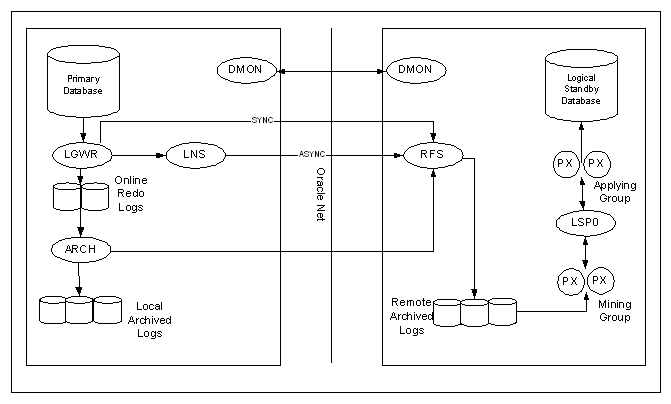
Fig 2: DATA GUARD WITH DETAILS OF PROCESSES
A database can operate in one of the two
mutually exclusive roles: primary or standby database.
A failover is done when the primary database (all instances of an Oracle RAC primary database) fails or has become unreachable and one of the standby databases is transitioned to take over the primary role. Failover should be performed when the primary database cannot be recovered in a timely manner. Failover may or may not result in data loss depending on the protection mode in effect at the time of the failover.
Switchover
A switchover is a role reversal between the primary database and one of its standby databases. A switchover guarantees no data loss and is typically done for planned maintenance of the primary system. During a switchover, the primary database transitions to a standby role, and the standby database transitions to the primary role
Data Guard Interfaces
SQL*Plus and SQL Statements
Using SQL*Plus and SQL commands to manage Data Guard environment. The following SQL statement initiates a switchover operation:
SQL> alter database commit to switchover to physical standby;
Data Guard Broker GUI Interface (Data Guard Manager)
Data Guard Manger is a GUI version of Data Guard broker interface that allows you to automate many of the tasks involved in configuring and monitoring a Data Guard environment.
Data Guard Broker Command-Line Interface (CLI)
It is useful if you want to use the broker from batch programs or scripts. You can perform most of the activities required to manage and monitor the Data Guard environment using the CLI. The following example lists the available commands:
$ dgmgrl
Welcome to DGMGRL, type "help" for information.
DGMGRL> help
The following commands are available:
add Adds a member to the broker configuration
connect Connects to an Oracle database instance
convert Converts a database from one type to another
create Creates a broker configuration
disable Disables a configuration, a member, or fast-start failover
edit Edits a configuration or a member
enable Enables a configuration, a member, or fast-start failover
exit Exits the program
failover Changes a standby database to be the primary database
help Displays description and syntax for a command
quit Exits the program
reinstate Changes a database marked for reinstatement into a viable standby
rem Comment to be ignored by DGMGRL
remove Removes a configuration or a member
show Displays information about a configuration or a member
shutdown Shuts down a currently running Oracle database instance
sql Executes a SQL statement
start Starts the fast-start failover observer
startup Starts an Oracle database instance
stop Stops the fast-start failover observer
switchover Switches roles between a primary and standby database
validate Performs an exhaustive set of validations for a database
A physical standby database is a byte for byte exact copy of the
primary database. This also means that rowids stay the same in a
physical standby database environment.
On the primary database site, the log writer
process (LGWR) collects transactions from the log buffer
and writes to the online redo logs. The
archiver process (ARCH) creates a copy of the
online redo logs, and writes to the local archive destination. Depending on the configuration, the
archiver process or log writer process can also transmit redo
logs to standby database. When
using the log writer process, you can specify synchronous or
asynchronous network transmission of redo logs to remote
destinations. Data Guard achieves asynchronous
network I/O using LGWR network server process (LNS). These network severs processes are
deployed by LOG_ARCHIVE_DEST_n initialization parameter. Data Guard’s asynchronous log transport (i.e. the
Maximum Performance mode) is recommended for a configuration
in which the network distance is up to thousands of miles,
providing continual maximum performance, while minimizing the
risks of transaction loss in the event of a disaster.
On the standby database site, the remote file
server process (RFS) receives archived redo logs from the
primary database. The primary site
launches the RFS process during the first log transfer. The redo logs information received by
the RFS process can be stored as either standby redo logs or
archived redo logs. Data Guard
introduces the concept of standby redo logs (separate pool of
log file groups). Standby redo logs
must be archived by the ARCH process to the
standby archived destination before the managed
recovery process (MRP) applies redo log information to the
standby database.
The fetch archive log (FAL) client is the MRP
process. The fetch
archive log (FAL) server is a foreground process that runs
on the primary database and services the fetch archive log
requests coming from the FAL client. A
separate FAL server is created for each incoming FAL client.
FAL_SERVER specifies the FAL (fetch
archive log) server for a standby database. The value is an
Oracle Net service name, which is assumed to be configured
properly on the standby database system to point to the
desired FAL server.
FAL_CLIENT specifies the FAL client name that is used by the
FAL service, configured through the FAL_SERVER parameter, to
refer to the FAL client. The value is an Oracle Net service
name, which is assumed to be configured properly on the FAL
server system to point to the FAL client (standby database).
Thanks to the FAL_CLIENT and FAL_SERVER
parameters, the managed-recovery process in the physical
database will automatically check and resolve gaps at the time
redo is applied. This helps in the sense that you don't need
to perform the transfer of those gaps by yourself.
FAL_CLIENT and FAL_SERVER only need to be defined in the
initialization parameter file for the standby database(s). It
is possible; however, to define these two parameters in the
initialization parameter for the primary database server to
ease the amount of work that would need to be performed if the
primary database were required to transition its role.
When using Data Guard Broker (DG_BROKER_START
= TRUE), the monitor agent process named Data Guard Broker
Monitor (DMON) is running on every site (primary and
standby) and maintain a two-way communication.

Logical
Standby Processes Architecture (redo logs converted to sql,
called SQL APPLY)
The major difference between the logical and physical standby
database architectures is in its log apply services.
On a Logical Standby, you can query it while simultaneously
applying transactions from the primary. This is ideal for
business that requires a near real-time copy of your
production DB for reporting.
The key advantage for logical standby databases is that they're opened read/write,
even while they're in applied mode. That is, they can be used
to generate reports and the like. It is indeed a fully
functional database. Also, additional indexes, materialized
views and so on can be created.
Oracle (or more exactly the log apply services) uses the
primary database's redo log, transforms them into SQL
statements and replays them on the logical standby database.
SQL Apply uses LOGMINER technology to reconstruct
DML statements from the redo generated on the primary.
The logical standby process (LSP) is the
coordinator process for two groups of parallel
execution process (PX) that work concurrently to read,
prepare, build, and apply completed SQL transactions from the
archived redo logs sent from the primary database.
The first group of PX processes read
log files and extract the SQL statements by using
LogMiner technology; the second group of PX processes apply
these extracted SQL transactions to the logical standby
database. The mining and applying
process occurs in parallel. Logical
standby database does not use standby online redo logs. Logical standby database does not have
FAL capabilities in Oracle. All
gaps are resolved by the proactive gap resolution mechanism
running on the primary that polls the standby to see if they
have a gap.
- The Active Data Guard
option enables a physical standby database to be
used for read-only applications while simultaneously receiving
updates from the primary database. Queries executed on an
active standby database return up-to-date results. An Active
Data Guard standby database is unique compared to other
physical replication methods in its ability to guarantee the
same level of read consistency as the primary database while
replication is active. More information HERE
- Snapshot Standby
enables a physical standby database to be open read-write for
testing or any activity that requires a read-write replica of
production data. A Snapshot Standby continues to receive, but
not apply, updates generated by the primary. When testing is
complete, the Snapshot Standby is converted back into a
synchronized physical standby database by first discarding the
changes made while open read-write, and then applying the redo
received from the primary database. Primary data is protected
at all times. More information HERE
- A physical standby
database, because it is an exact replica of the
primary database, can also be used to offload the primary
database of the overhead of performing backups. All recovery
operations are interchangeable between primary and Data Guard
physical standby databases.
Data
Protection Modes
Maximum
Protection: It offers the highest level of data
availability for the primary database.
In order to provide this level of protection, the redo data
needed to recover each transaction must be written to both the
local (online) redo log and to a standby redo log on at least
one standby database before the transaction can be committed. In
order to guarantee no loss of data, the primary database will
shut down if a fault prevents it from writing its redo data to
at least one remote standby redo log.
Redo records are synchronously transmitted from
the primary database to the standby database using LGWR process. Transaction is not committed
on the primary database until it has been confirmed
that the transaction data is available on at least one standby
database. This mode is usually
configured with at least two standby databases. Standby online redo logs are
required in this mode. Therefore,
logical standby database cannot participate in a maximum
protection configuration. The log_archive_dest_n
parameter needs to have the LGWR SYNC AFFIRM option, for example:
log_archive_dest_2='service=testdb_standby
LGWR SYNC AFFIRM'
Maximum Availability: Provides the
highest level of data protection that is possible without
affecting the availability of the primary database.
This protection mode is very similar to maximum protection where
a transaction will not commit until the redo data needed to
recover that transaction is written to both the local (online)
redo log and to at least one remote standby redo log.
Redo records are synchronously transmitted from
the primary database to the standby database using LGWR process. Unlike maximum protection mode;
however, the primary database will not shut down if a fault
prevents it from writing its redo data to a remote standby redo
log. Instead, the primary database will operate in maximum
performance mode until the fault is corrected and all log gaps
have been resolved. After all log gaps have been resolved, the
primary database automatically resumes operating in maximum
availability mode. This protection mode supports both physical
and logical standby databases. Standby online redo logs are
required in this mode. The log_archive_dest_n
parameter needs to have the LGWR SYNC AFFIRM option, for example:
log_archive_dest_2='service=testdb_standby
LGWR SYNC AFFIRM'
Maximum Performance: It is the default
protection mode.
It offers slightly less primary database protection than maximum
availability mode but with higher performance.
Redo logs are asynchronously shipped from
the primary database to the standby database using either LGWR
or ARCH process. When operating in
this mode, the primary database continues its transaction
processing without regard to data availability on any standby
databases and there is little or no effect on performance. It supports both
physical and logical standby databases. The
log_archive_dest_n parameter needs to have the LGWR ASYNC AFFIRM or NOAFFIRM option,
for example:
log_archive_dest_2='service=testdb_standby
ARCH NOAFFIRM'
or
log_archive_dest_2='service=testdb_standby LGWR ASYNC
NOAFFIRM'
|
Mode |
Log Writing Process |
Network Trans Mode |
Disk Write Option |
Redo Log Reception Option |
Supported on |
|
Maximum Protection Zero data loss Double failure
protection |
LGWR |
SYNC |
AFFIRM |
Standby redo logs are required |
Physical standby databases. |
|
Maximum Availability |
LGWR |
SYNC |
AFFIRM |
Standby redo logs |
Physical and logical standby
databases. |
|
Maximum Performance |
LGWR or ARCH |
ASYNC |
NOAFFIRM |
Standby redo logs |
Physical and logical standby
databases. |
This is achieved by using the following command syntax
executed on the primary database.
ALTER DATABASE SET STANDBY DATABASE TO MAXIMIZE { PROTECTION |
AVAILABILITY | PERFORMANCE };
The protection mode can be found by executing this query.
PERFORMANCE is the default.
SELECT name,
protection_mode, protection_level FROM v$database;
--------- -------------------- --------------------
STBY MAXIMUM PERFORMANCE
MAXIMUM PERFORMANCE
-Minimal Data Loss. The AVAILABILITY mode prevents a
transaction committing on the primary until all redo entries
are written to at least one standby database. SYNC transport
is required and this option is available to both logical and
physical standby type databases. Unlike PROTECTION mode, which
shuts down the primary database in the event of failure to
pass redo entries to the standby, this mode simply lowers the
protection mode to PERFORMANCE until the error is corrected.
- No Data Divergence. PERFORMANCE mode is the default setting
and available for both physical and logical standby type
databases. A transaction will commit to the primary before all
redo entries are written to any standby database.
To ensure that minimal data loss will be encountered execute
this command on the primary database. The database must be in
mounted exclusive mode to execute this command.
ALTER DATABASE SET STANDBY
DATABASE TO MAXIMIZE AVAILABILITY;
• AFFIRM assures
that archive logs are written to disk, primary or standby.
• MANDATORY assures
that redo logs are not overwritten until archive logs are
successfully created. This should only apply to the primary
database.
• REOPEN=30 means
that there will be a 30 second delay until LGWR process try
again on a MANDATORY destination which failed.
• DELAY is in
minutes and does not stop the copy of an archive log file to a
standby server but the application of redo on the standby
after copying the archive log to the standby. This will not
help primary database performance.
• Using ARCH instead
of LGWR for the
second standby database may help primary database performance
but smaller sized log files would probably be required.
SYNC=PARALLEL applies to LGWR only. Using ARCH waits for a
switch on the primary, LGWR copies entries to a standby
archive log, applied only at switch. ARCH will copy and apply
at switch. LGWR is more efficient since it writes redo entries
to all standby databases at once but a primary and two standby
databases could possibly cause a performance issue for the
primary database, possibly but unlikely! Additionally multiple
archiver processes can be created on the primary database.
Increase the value of the LOG_ARCHIVE_MAX_PROCESSES parameter
to start additional archiver processes. The default on my
machine appears to be 2 and not 1 as stated in the manuals;
probably because I have two standby databases.
• The ARCHIVE_LAG_TARGET
parameter could be used to increase the frequency of log
switches, thus sending less data to the standby databases more
often. Specifies the maximum number of seconds between each
log switch, so it will force a log switch when that number in
seconds is reached. Used on Physical Implementation Only.
Using
Data Guard Redo Apply in a LAN the following is recommended:
• Use Maximum Protection or Maximum Availability modes for zero
data loss; the performance impact was less than 3% in all
synchronous tests. With a single remote archive destination, use
the NOPARALLEL option (“lgwr sync=noparallel”).
• For very good performance and a minimal risk of transaction
loss in the event of a disaster, use Maximum Performance mode,
with LGWR ASYNC and a 10 MB async buffer (ASYNC=20480). LGWR
ASYNC performance degraded no more than 1% as compared to using
the ARCH transport. LGWR ASYNC also bounds the risk of potential
transaction loss much better than the ARCH transport. The 10 MB
async buffer outperformed smaller buffer sizes and reduced the
chance of network timeout errors in a high latency / low
bandwidth network.
Metropolitan
and Wide Area Network (WAN)
Data Guard is used across a metropolitan area networks (MAN) or
WANs to get complete disaster recovery protection.
Typically a MAN covers a large metropolitan area and has network
Round-Trip-Times (RTT) from 2-10 ms. For the MAN/WAN tests,
different network RTT’s were simulated during testing to measure
the impact of the RTT on the primary database performance. The
tests were conducted for the following RTT’s: 2 ms (MAN), 10 ms,
50 ms, and 100 ms (WAN) Additionally, tests using Secure Shell
(SSH) port forwarding with compression were also done for
different RTT’s.
Best practices recommendations are:
• Use Maximum Protection and Maximum Availability modes over a
MAN for zero data loss. For these modes, the network RTT
overhead over a WAN can impact response time and throughput of
the primary database. The performance impact was less than 6%
with a 10 ms network RTT and a high transaction rate.
• For very good performance and a minimal risk of transaction
loss in the event of a disaster, use Maximum Performance mode,
with LGWR ASYNC and a 10 MB async buffer (ASYNC=20480). LGWR
SYNC performance degraded no more than 2% as compared to remote
archiving. The 10 MB async buffer outperformed smaller buffer
sizes and reduced the chance of network timeout errors in a high
latency / low bandwidth network.
• For optimal primary database performance throughput, use
remote archiving (i.e. the ARCH process as the log transport).
This configuration is best used when network bandwidth is
limited and when your applications can risk some transaction
loss in the event of a disaster.
• If you have sufficient memory, then set the TCP send and
receive buffer sizes (these affect the advertised TCP window
sizes) to the bandwidth delay product, the bandwidth times the
network round trip time. This can improve transfer time to the
standby by as much as 10 times, especially with the ARCH
transport.
Best
Practices
for Network Configuration and Highest Network Redo Rates
• Set SDU=32768 (32K) for the Oracle Net connections
between the primary and standby. Setting the Oracle network
services session data unit (SDU) to its maximum setting of 32K
resulted in a 5% throughput improvement over the default setting
of 2048 (2K) for LGWR ASYNC transport services and a 10%
improvement for the LGWR SYNC transport service. SDU designates
the size of the Oracle Net buffer used to collect data before it
is delivered to the TCP network layer for transmission across
the network. Oracle internal testing of Oracle Data Guard has
demonstrated that the maximum setting of 32767 performs best.
The gain in performance is a result of the reduced number of
system calls required to pass the data from Oracle Net buffers
to the operating system TCP network layer. SDU can be set on a
per connection basis with the SDU parameter in the local naming
configuration file (tnsnames.ora) and the listener configuration
file (listener.ora), or SDU can be set for all Oracle Net
connections with the profile parameter DEFAULT_SDU_SIZE in the
sqlnet.ora file. This is specially true for WAN environment.
• Use SSH port forwarding with compression for WAN’s
with a large RTT when using maximum performance mode. Do not use
SSH with compression for Maximum Protection and Maximum
Availability modes since it adversely affected the primary
throughput. Using SSH port forwarding with compression reduced
the network traffic by 23-60% at a 3-6% increase in CPU usage.
This also eliminated network timeout errors. With the ARCH
transport, using SSH also reduced the log transfer time for
RTT’s of 50 ms or greater. For RTT’s of 10ms or less, the ARCH
transport log transfer time was increased when using SSH with
compression.
• Ensure TCP.NODELAY is YES
To preempt delays in buffer flushing in the TCP protocol stack,
disable the TCP Nagle algorithm by setting TCP.NODELAY to YES in
the SQLNET.ORA file on both the primary and standby systems.
Physical
Standby Implementation
The following example shows how to set up Data Guard MANUALLY in this given environment:
2. One primary database instance called FGUARD on host server_01; one physical standby database instance called FGUARD on host server_02.
3. Listener listener is on host server1, and pointed by TNS entry FGUARD
4. Listener listener is on host server2, and pointed by TNS entry FGUARD.
5. The purpose of TNS entry FGUARD and FGUARD are used for LGWR/ARCH process to ship redo logs to the standby site, and for FAL process to fetch redo logs from the primary site.
6. We will be implementing the configuration manually, but we will set dg_broker_start to true, so Data Guard broker can be used later.
7. The protection mode is set to best performance. Therefore, only local archive destination (log_archive_dest_1) is set to mandatory; the standby archive destination (log_archive_dest_2) is set to optional for LGWR process, with network transmission method of asynchronous and disk write option of no affirm.
8. The standby site is not using standby online redo logs. Therefore, the redo log reception option is archived logs.
Section 1: Site Information
Primary Site:
Database Name: FGUARD
Primary Server : server_01
Primary Instance Name: FGUARD
Primary Listener: LISTENER
Recovery Database: DR_FGUARD
Standby Site:
Database Name: FGUARD
Standby Server: server_02
Standby Instance name: FGUARD
Standby Listener: LISTENER
Production DB: PROD_FGUARD
Section 2: Oratab /etc/oratab entry:
| Primary Site: | Standby Site: |
| FGUARD:/u01/app/oracle/product/11.2.0:Y | FGUARD:/u01/app/oracle/product/11.2.0:N |
Section 3: Parameter file
Primary init.ora file:
db_name = FGUARD
db_unique_name = FGUARD
#fal_server = DR_FGUARD #PROD DB used on tnsnames.ora
#fal_client = FGUARD #this DB used on tnsnames.ora
log_archive_dest_1 = 'LOCATION=/u02/arch/PROD MANDATORY' #Local Location of Archive Log Files
log_archive_dest_2 = 'SERVICE=DR_FGUARD reopen=60' #Remote Service Name based on tnsnames.ora
log_archive_dest_state_1 = 'enable'
log_archive_dest_state_2 = 'enable'
log_archive_format = 'arch_t%t_s%s.dbf'
log_archive_start = true (not used on 10g)
standby_archive_dest = '/oracle/arch'
standby_file_management ='AUTO' #If auto, newly created tablespaces/datafiles must be created manually on the standby environment.
dg_broker_start = true
New Ones
service_names =FGUARD
instance_name =FGUARD
log_archive_config="dg_config=(FGUARD,DR_FGUARD)" -->This parameter is required by the Data Guard Broker
log_archive_max_processes=5
log_archive_dest_1='location=D:\oracle\product\10.1.0\flash_recovery_area\FGUARD\ARCHIVELOG valid_for=(ALL_LOGFILES,ALL_ROLES) db_unique_name=FGUARD'
log_archive_dest_2= 'service=standby LGWR SYNC AFFIRM valid_for=(ONLINE_LOGFILES,PRIMARY_ROLE) DB_UNIQUE_NAME=DR_FGUARD'
standby_archive_dest=D:\oracle\product\10.1.0\flash_recovery_area\PRIMARY\ARCHIVELOG
Optional parameters:
log_archive_dest_2='service=stby lgwr sync affirm mandatory reopen=180'
LOG_ARCHIVE_DEST_2 - Specifies the net service name of the standby database (check tnsnames.ora on primary database).You can either per destination use LGWR or ARCH or both, due to network traffic it is advised to use LGWR for at most one remote destination. Also the network transmission mode (SYNC or ASYNC) has to be specified in case primary database modifications are propagated by the LGWR. The NO DATA LOSS situation demands the SYNC mode, control is not returned to the executing application or user until the redo information is received by the standby site (this can have impact on the performance as mentioned).
Standby init.ora file:
db_name = FGUARD
db_unique_name = DR_FGUARD --> MUST BE DIFFERENT FROM PRIMARY SITE
fal_server = PROD_FGUARD #PROD DB used on tnsnames.ora
fal_client = FGUARD #this DB used on tnsnames.ora
log_archive_dest_1 = 'LOCATION=/oracle/arch MANDATORY' #This parameter should always coincide with the standby_archive_dest parameter
log_archive_dest_state_1 = 'enable'
#log_archive_dest_2 = 'SERVICE=PROD_FGUARD reopen=60'
#log_archive_dest_state_2 = 'enable'
log_archive_format = 'arch_t%t_s%s.dbf'
log_archive_start = true (not used on 10g)
standby_archive_dest = '/oracle/arch' ##This parameter should always coincide with the log_archive_dest_1 parameter
standby_file_management ='AUTO'
dg_broker_start = true
New Ones
service_names='DR_FGUARD'
instance_name=DR_FGUARD
control_files='D:\oradata\PRIMARY_STDBY.CTL'
log_archive_config="dg_config=(FGUARD,DR_FGUARD)" -->This parameter is required by the Data Guard Broker
log_archive_max_processes=5
log_archive_dest_1='location=D:\oracle\product\10.1.0\flash_recovery_area\PRIMARY\ARCHIVELOG valid_for=(ALL_LOGFILES,ALL_ROLES) db_unique_name=DR_FGUARD'
log_archive_dest_2= 'service=FGUARD LGWR SYNC AFFIRM valid_for=(ONLINE_LOGFILES,PRIMARY_ROLE) DB_UNIQUE_NAME=FGUARD'
standby_archive_dest=D:\oracle\product\10.1.0\flash_recovery_area\PRIMARY\ARCHIVELOG
Optional Parameters:
db_file_name_convert=('/disk1/oracle/oradata/payroll/','/disk1/oracle/oradata/payroll/standby/')
or
db_file_name_convert=('/PROD2/','/PROD')
log_file_name_convert=('/disk1/oracle/oradata/payroll/','/disk1/oracle/oradata/payroll/standby/')
or
log_file_name_convert=('/PROD2/','/PROD')
DB_FILE_NAME_CONVERT - Specifies the location of datafiles on standby database.The two arguments that this parameter needs are: location of datafiles on primary database , location of datafiles on standby database. This parameter will convert the filename of the primary database datafiles to the filename of the standby datafile filenames. If the standby database is on the same system as the primary database or if the directory structure where the datafiles are located on the standby site is different from the primary site then this parameter is required. See Section 3.2.1 for the location of the datafiles on the primary database. Used on Physical Implementation ONLY.
LOG_FILE_NAME_CONVERT - Specifies the location of redo logfiles on standby database.The two arguments that this parameter needs are: location of redo logfiles on primary database , location of redo logfiles on standby database. This parameter will convert the filename of the primary database log to the filenames of the standby log. If the standby database is on the same system as the primary database or if the directory structure where the logs are located on the standby site is different from the primary site then this parameter is required. Used on Physical Implementation ONLY.
Section 4: Listener.ora file
| Primary Site: | Standby Site: |
| FGUARD = (DESCRIPTION = (ADDRESS_LIST = (ADDRESS = (PROTOCOL = TCP)(HOST = server1)(PORT = 1521)) ) (CONNECT_DATA = (SERVER = DEDICATED) (SERVICE_NAME = FGUARD) ) ) DR_FGUARD = (DESCRIPTION = (ADDRESS_LIST = (ADDRESS = (PROTOCOL = TCP)(HOST = server2)(PORT = 1521)) ) (CONNECT_DATA = (SERVER = DEDICATED) (SERVICE_NAME = FGUARD) ) ) |
FGUARD= (DESCRIPTION = (ADDRESS_LIST = (ADDRESS = (PROTOCOL = TCP)(HOST = server2)(PORT = 1521)) ) (CONNECT_DATA = (SERVER = DEDICATED) (SERVICE_NAME = FGUARD) ) ) PROD_FGUARD = (DESCRIPTION = (ADDRESS_LIST = (ADDRESS = (PROTOCOL = TCP)(HOST = server1)(PORT = 1521)) ) (CONNECT_DATA = (SERVER = DEDICATED) (SID = FGUARD) ) ) |
Step 1: The Preparation
If Archive Log Mode is not enabled for your primary database, enable it using the following. First, you will need to define the following instance variables:
alter system set log_archive_dest_1 = 'LOCATION=/oracle/arch MANDATORY' scope=both;
alter system set log_archive_dest_state_1 = 'enable' scope=both;
alter system set log_archive_format = 'arch_t%t_s%s.dbf' scope=both;
shutdown immediate;
startup mount;
alter database archivelog;
alter database open;
archive log list;
- Enable Forced Logging. This option ensures that even in the event that a 'nologging' operation is done, force logging takes precedence and all operations are logged into the redo logs.
alter database force logging;
Standby redo logs are necessary for the higher protection levels such as Guaranteed, Instant, and Rapid. In these protection modes LGWR from the Primary host writes transactions directly to the standby redo logs. This enables no data loss solutions and reduces the amount of data loss in the event of failure. Standby redo logs are not necessary if you are using the delayed protection mode.
If you configure standby redo on the standby then you should also configure standby redo logs on the primary database. Even though the standby redo logs are not used when the database is running in the primary role, configuring the standby redo logs on the primary database is recommended in preparation for an eventual switchover operation
Standby redo logs must be archived before the data can be applied to the standby database. The standby archival operation occurs automatically, even if the standby database is not in ARCHIVELOG mode. However, the archiver process must be started on the standby database. Note that the use of the archiver process (performed by the LGWR process) is a requirement for selection of a standby redo log
You must have the same number of standby redo logs on the standby as you have online redo logs on production. They must also be exactly the same size.
select * from v$logfile;
GROUP# STATUS TYPE MEMBER IS_
---------- ------- ------- ---------------------------------------------------------------------- ---
1 ONLINE /export/home/oracle/temp/oracle/data/redo01.log NO
2 ONLINE /export/home/oracle/temp/oracle/data/redo02.log NO
3 ONLINE /export/home/oracle/temp/oracle/data/redo03.log NO
select bytes from v$log;
BYTES
----------
52428800
52428800
52428800
The following syntax is used to create standby redo logs:
SQL> alter database add standby logfile GROUP 4 size 50m;
SQL> alter database add standby logfile GROUP 5 size 50m;
SQL> alter database add standby logfile GROUP 6 size 50m;
select * from v$logfile;
GROUP# STATUS TYPE MEMBER IS_
---------- ------- ------- ---------------------------------------------------------------------- ---
1 ONLINE /export/home/oracle/temp/oracle/data/redo01.log NO
2 ONLINE /export/home/oracle/temp/oracle/data/redo02.log NO
3 ONLINE /export/home/oracle/temp/oracle/data/redo03.log NO
4 STANDBY /export/home/oracle/temp/oracle/data/standbyredo01.dbf NO
5 STANDBY /export/home/oracle/temp/oracle/data/standbyredo01.dbf NO
6 STANDBY /export/home/oracle/temp/oracle/data/standbyredo01.dbf NO
select * from v$standby_log;
GROUP# DBID THREAD# SEQUENCE# BYTES USED ARC STATUS FIRST_CHANGE# FIRST_TIM LAST_CHANGE# LAST_TIME
-------- ----------- ------- ---------- --------- ----- ------------------------------------------------------------------
4 UNASSIGNED 0 0 52428800 512 YES UNASSIGNED 0 0
5 UNASSIGNED 0 0 52428800 512 YES UNASSIGNED 0 0
6 UNASSIGNED 0 0 52428800 512 YES UNASSIGNED 0 0
· Setup the init.ora file for both primary and standby databases. (see section 3)
NOTE: In the above example db_file_name_convert and log_file_name_convert are not needed as the directory structure on the two hosts are the same. If the directory structure is not the same then setting of these parameters is recommended. Please reference ML notes 47325.1 and 47343.1 for further information.
Note here that the Primary init.ora on the Standby host to have log_archive_dest_2 use the alias that points to the Primary host. You must modify the Standby init.ora on the standby host to have fal_server and fal_client use the aliases when standby is running on the Primary host.
· Setup the tnsnames.ora and listener.ora file for both primary and standby databases. (see section 4)
Step 2: Backup the primary Database
Datafiles
· Backup the primary database datafiles and online redo logs. A backup of the online redo logs is necessary to facilitate switchover.
or
set pages 50000 lines 120 head off veri off flush off ti off
select 'cp ' || file_name || ' /oracle/BCKUP' from dba_data_files
UNION
select 'cp ' || file_name || ' /oracle/BCKUP' from dba_temp_files
UNION
select 'cp ' || member || ' /oracle/BCKUP' from v$logfile;
Step 3: Create the Physical standby
Database Control File
NOTE: The controlfile must be created after the last time stamp for the backup datafiles.
Step 4: Transfer the Datafiles and
Standby Control File to the Standby Site
cd $ORACLE_HOME/dbs
orapwd file=orapwFGUARD password=oracle force=y ignorecase=y
If needed perform the following on the other system:
chmod 6751 orapwSID
Step 5: Start the Listeners on both
Primary and Standby Site
WINNT> oradim -NEW -SID databaseid -INTPWD password -STARTMODE manual
· Start the the listener on the primary and standby database
Step 6: Start the Standby Database (Primary Database already
running)
If the standby is on a separate site with the same directory structure as the primary database then you can use the same path names for the standby files as the primary files. In this way, you do not have to rename the primary datafiles in the standby control file.
If the standby is on the same site as the primary database, or the standby database is on a separate site with a different directory structure the you must rename the primary datafiles in the standby control file after copying them to the standby site. This can be done using the db_file_name_convert and log_file_name_convert parameters or by manually using the alter database statements. If the directory structure is not the same then reference notes 47325.1 and 47343.1 for further information.
If you decided to rename them manually, you MUST use ALTER DATABASE RENAME FILE <oldname> TO <newname> after the standby database is mounted to rename the database files and redo log files..
If needed, copy the Standby Controlfile that your created FROM the production DB to the appropiate location on the standby DB according your init.ora file
$ cd
$ cp standby.ctl /u03/app/oradata/FGUARD/control01.ctl
$ cp standby.ctl /u04/app/oradata/FGUARD/control02.ctl
$ cp standby.ctl /u05/app/oradata/FGUARD/control03.ctl
· Connect as sysdba.
· Bring the database in nomount mode first.
Step 7: Place the Standby Database
in Managed Recovery Mode
Step 8: Monitor the Log Transport
services and Log Apply Services
or
SQL> alter system archive log current;
· Check the standby alert log file to see if the new logs have applied to the standby database.
from v$managed_standby;
or
select sequence#, first_time, next_time
from v$archived_log order by sequence#;
From the standby database, query the V$ARCHIVED_LOG view to verify the archived redo log was applied.
select sequence#, archived, applied
from v$archived_log order by sequence#;
SEQUENCE# ARCHIVED APPLIED
---------- -------- -------
115 YES YES
116 YES YES
Logical Standby Sanity Check
Detect Database Role
select name, database_role from v$database;
Queries for PRIMARY Database
- Show Thread, Archived, Applied
select DEST_ID, THREAD#, SEQUENCE#, ARCHIVED, APPLIED, COMPLETION_TIME from v$archived_log where DEST_ID = 2 order by SEQUENCE#;
DEST_ID THREAD# SEQUENCE# ARC APP COMPLETION_TIME
--------- ---------- ---------- --- --- ------------------
2 1 1350 YES YES 17/JAN/11 21:35:13
2 1 1351 YES YES 17/JAN/11 22:03:06
2 1 1352 YES YES 17/JAN/11 22:17:30
2 1 1353 YES NO 17/JAN/11 22:37:10
2 1 1354 YES NO 17/JAN/11 22:37:11
2 1 1355 YES NO 17/JAN/11 22:44:21
2 1 1356 YES NO 18/JAN/11 07:45:09
On STANDBY database
ALTER SESSION SET NLS_DATE_FORMAT = 'DD-MON-YY HH24:MI:SS';
- Verify the archived redo log files were registered.
SELECT SEQUENCE#, FIRST_TIME, NEXT_TIME, DICT_BEGIN, DICT_END, TIMESTAMP FROM DBA_LOGSTDBY_LOG ORDER BY SEQUENCE#;
SEQUENCE# FIRST_TIME NEXT_TIME DIC DIC TIMESTAMP
--------- ------------------ ------------------ --- --- ------------------
1353 17-JAN-11 22:17:14 17-JAN-11 22:36:33 NO NO 17-JAN-11 22:37:14
1354 17-JAN-11 22:36:33 17-JAN-11 22:37:06 NO NO 17-JAN-11 22:37:14
1355 17-JAN-11 22:37:06 17-JAN-11 22:44:19 NO NO 17-JAN-11 22:44:24
1356 17-JAN-11 22:44:19 18-JAN-11 07:44:23 NO NO 18-JAN-11 07:45:12
- Show Threads Progress, Determine how much progress was made through the available logs
SELECT L.SEQUENCE#, L.FIRST_TIME,
(CASE WHEN L.NEXT_CHANGE# < P.READ_SCN THEN 'YES'WHEN L.FIRST_CHANGE# < P.APPLIED_SCN THEN 'CURRENT' ELSE 'NO' END) APPLIED
FROM DBA_LOGSTDBY_LOG L, DBA_LOGSTDBY_PROGRESS P
ORDER BY SEQUENCE#;
SEQUENCE# FIRST_TIME APPLIED
---------- ------------------ -------
1353 17-JAN-11 22:17:14 CURRENT
1354 17-JAN-11 22:36:33 NO
1355 17-JAN-11 22:37:06 NO
1356 17-JAN-11 22:44:19 NO
- Verify Currect SCN to see if all log file information was applied
SELECT APPLIED_SCN, NEWEST_SCN FROM DBA_LOGSTDBY_PROGRESS;
APPLIED_SCN NEWEST_SCN
----------- ----------
2998474027 2998474027
- Show File Location that I received and its status
SELECT FILE_NAME, SEQUENCE#, FIRST_CHANGE#, NEXT_CHANGE#, TIMESTAMP, DICT_BEGIN, DICT_END, THREAD# FROM
DBA_LOGSTDBY_LOG ORDER BY SEQUENCE#;
FILE_NAME
--------------------------------------------------------------------------------
SEQUENCE# FIRST_CHANGE# NEXT_CHANGE# TIMESTAMP DIC DIC THREAD#
---------- ------------- ------------ ------------------ --- --- ----------
C:\ORACLE\PRODUCT\10.2.0\ORADATA\WINORADB_ARCH_STDBY_REDO_LOG\ARCH_001_01353_697041245.LOG
1353 2998447810 2998451537 17-JAN-11 22:37:14 NO NO 1
C:\ORACLE\PRODUCT\10.2.0\ORADATA\WINORADB_ARCH_STDBY_REDO_LOG\ARCH_001_01354_697041245.LOG
1354 2998451537 2998451552 17-JAN-11 22:37:14 NO NO 1
C:\ORACLE\PRODUCT\10.2.0\ORADATA\WINORADB_ARCH_STDBY_REDO_LOG\ARCH_001_01355_697041245.LOG
1355 2998451552 2998451783 17-JAN-11 22:44:24 NO NO 1
C:\ORACLE\PRODUCT\10.2.0\ORADATA\WINORADB_ARCH_STDBY_REDO_LOG\ARCH_001_01356_697041245.LOG
1356 2998451783 2998472682 18-JAN-11 07:45:12 NO NO 1
- Show what the Standby is doing, Inspect the process activity for SQL apply operations
column status format a50
column type format a12
select type, high_scn, status from v$logstdby;
SELECT substr(TYPE,1,10) Type, HIGH_SCN, substr(STATUS,1,55) FROM V$LOGSTDBY;
TYPE HIGH_SCN STATUS
------------ ---------- --------------------------------------------------
COORDINATOR 2998474028 ORA-16116: no work available
READER 2998474028 ORA-16240: Waiting for logfile (thread# 1, sequence# 1358)
BUILDER 2998474025 ORA-16116: no work available
PREPARER 2998474024 ORA-16116: no work available
ANALYZER 2998474025 ORA-16117: processing
APPLIER 2998474005 ORA-16116: no work available
APPLIER 2998474025 ORA-16116: no work available
APPLIER 2998473973 ORA-16116: no work available
APPLIER 2998473978 ORA-16116: no work available
- Show problematic Rows or Events
SELECT EVENT_TIME, STATUS, EVENT FROM DBA_LOGSTDBY_EVENTS ORDER BY EVENT_TIME, COMMIT_SCN;
- Check Coordinator Status
SELECT substr(NAME,1,20) Name, substr(VALUE,1,30) value
FROM V$LOGSTDBY_STATS
WHERE NAME LIKE 'coordinator%' or NAME LIKE 'transactions%';
NAME VALUE
-------------------- -------------------
coordinator state IDLE
transactions ready 1165
transactions applied 1165
coordinator uptime 285
Troubleshooting a Logical Standby
Setting up a Skip Handler for a DDL Statement
The DB_FILE_NAME_CONVERT initialization parameter is not honored once a physical standby database is converted to a logical standby database.
This can be a problem, for example, when adding a non-OMF datafile to the primary database and the datafile paths are different between the primary and standby. This section describes the steps necessary to register a skip handler and provide SQL Apply with a replacement DDL string to execute by converting the path names of the primary database datafiles to the standby datafile path names.
This may or may not be a problem for everyone. For example, if you are using Oracle Managed Files (OMF), SQL Apply will successfully execute DDL statements generated from the primary to CREATE and ALTER tablespaces and their associated system generated path name on the logical standby.
On PRIMARY Standby using Oracle Managed Files (OMF)
show parameter db_create_file_dest
NAME TYPE VALUE
-------------------------- ----------- ----------------
db_create_file_dest string /u02/oradata
create tablespace data2 datafile size 5m;
On LOGICAL Standby using Oracle Managed Files (OMF)
show parameter db_create_file_dest
NAME TYPE VALUE
-------------------------- ----------- ----------------
db_create_file_dest string /u02/oradata
----------------------- alert.log -----------------------
Wed Jan 12 18:45:28 EST 2011
Completed: create tablespace data2 datafile size 5m
---------------------------------------------------------
select tablespace_name, file_name
from dba_data_files
where tablespace_name = 'DATA2';
TABLESPACE_NAME FILE_NAME
------------------ ---------------------------------------------------------
DATA2 /u02/oradata/FGUARD/datafile/o1_mf_data2_6lwh8q9d_.dbf
On PRIMARY Standby using Oracle Managed Files (OMF)
alter tablespace data2 add datafile '/u05/oradata/MODESTO/data02.dbf' size 5m;
On LOGICAL Standby WITHOUT Oracle Managed Files (OMF)
If on the other hand, you attempt to specify a physical path name in the CREATE/ALTER tablespace statement that does not exist on the logical standby, SQL Apply will not succeed in processing the statement and will fail. Whenever SQL Apply encounters an error while applying a SQL statement, it will stop and provide the DBA with an opportunity to correct the statement and restart SQL Apply.
----------------------- alert.log -----------------------
Wed Jan 12 19:59:36 EST 2011
alter tablespace data2 add datafile '/u05/oradata/MODESTO/data02.dbf' size 5m
Wed Jan 12 19:59:36 EST 2011
ORA-1119 signalled during: alter tablespace data2 add datafile '/u05/oradata/MODESTO/data02.dbf' size 5m...
LOGSTDBY status: ORA-01119: error in creating database file '/u05/oradata/MODESTO/data02.dbf'
ORA-27040: file create error, unable to create file
Linux Error: 2: No such file or directory
LOGSTDBY Apply process P004 pid=31 OS id=28497 stopped
Wed Jan 12 19:59:36 EST 2011
Errors in file /u01/app/oracle/admin/turlock/bdump/turlock_lsp0_28465.trc:
ORA-12801: error signaled in parallel query server P004
ORA-01119: error in creating database file '/u05/oradata/MODESTO/data02.dbf'
ORA-27040: file create error, unable to create file
Linux Error: 2: No such file or directory
LOGSTDBY Analyzer process P003 pid=30 OS id=28495 stopped
LOGSTDBY Apply process P005 pid=32 OS id=28499 stopped
LOGSTDBY Apply process P006 pid=33 OS id=28501 stopped
LOGSTDBY Apply process P007 pid=34 OS id=28503 stopped
LOGSTDBY Apply process P008 pid=35 OS id=28505 stopped
---------------------------------------------------------
select event_timestamp, event, status from dba_logstdby_events;
EVENT_TIMESTAMP EVENT Status
----------------------------- ------------------------------ ------------------------------
12-JAN-11 07.59.36.134349 PM alter tablespace data2 add dat ORA-01119: error in creating d
afile '/u05/oradata/MODESTO/da atabase file '/u05/oradata/MOD
ta02.dbf' size 5m ESTO/data02.dbf'
ORA-27040: file create error,
unable to create file
Linux Error: 2: No such file o
r directory
Fixing it
1. Disable the database guard for this session so we can modify the logical standby.
alter session disable guard;
2. Issue a compensating transaction or statement on the logical standby. For this example, issue the following command with the correct path:
alter tablespace data2 add datafile '/u05/oradata/FGUARD/data02.dbf' size 5m;
3. Re-enable the database guard for this session.
alter session enable guard;
4. Restart logical apply with a clause that will cause the failed transaction to be automatically skipped.
alter database start logical standby apply immediate skip failed transaction;
5. Verify results.
select tablespace_name, file_name
from dba_data_files
where tablespace_name = 'DATA2';
TABLESPACE_NAME FILE_NAME
------------------ ---------------------------------------------------------
DATA2 /u02/oradata/FGUARD/datafile/o1_mf_data2_6lwh8q9d_.dbf
DATA2 /u05/oradata/FGUARD/data02.dbf
NOTE
It is possible to avoid errors of this nature on the logical standby database by registering a skip handler and provide SQL Apply with a replacement DDL string to execute by converting the path names of the primary database datafiles to the standby datafile path names. The steps to perform this are presented below. The actions below should be run on the logical standby database.
1. First, create the PL/SQL 'skip procedure' to handle tablespace DDL transactions.
create or replace procedure sys.handle_tbs_ddl (
old_stmt in varchar2
, stmt_typ in varchar2
, schema in varchar2
, name in varchar2
, xidusn in number
, xidslt in number
, xidsqn in number
, action out number
, new_stmt out varchar2
) as
begin
-- --------------------------------------------------------
-- All primary file specification that contain a directory
-- '/u05/oradata/FGUARD' should be changed to the
-- '/u01/another_location/oradata/FGUARD' directory specification.
-- --------------------------------------------------------
new_stmt := replace(old_stmt, '/u05/oradata/FGUARD', '/u01/another_location/oradata/FGUARD');
action := dbms_logstdby.skip_action_replace;
exception
when others then
action := dbms_logstdby.skip_action_error;
new_stmt := null;
end handle_tbs_ddl;
/
2. Stop SQL Apply.
alter database stop logical standby apply;
3.Register the skip procedure with SQL Apply.
execute dbms_logstdby.skip(stmt => 'TABLESPACE', proc_name => 'sys.handle_tbs_ddl');
4.Start SQL Apply.
alter database start logical standby apply immediate;
5. Perform a test.
On PRIMARY Standby
alter tablespace data2 add datafile '/u05/oradata/FGUARD/data03.dbf' size 5m;
ON Logical Standby
----------------------- alert.log -----------------------
Wed Jan 12 20:51:58 EST 2011
LOGSTDBY status: ORA-16110: user procedure processing of logical standby apply DDL
LOGSTDBY status: ORA-16202: Skip procedure requested to replace statement
Wed Jan 12 20:51:58 EST 2011
alter tablespace data2 add datafile '/u01/another_location/oradata/FGUARD/data03.dbf' size 5m
Completed: alter tablespace data2 add datafile '/u01/another_location/oradata/FGUARD/data03.dbf' size 5m
---------------------------------------------------------
select tablespace_name, file_name
from dba_data_files
where tablespace_name = 'DATA2';
TABLESPACE_NAME FILE_NAME
------------------ ---------------------------------------------------------
DATA2 /u01/another_location/oradata/FGUARD/data03.dbf
Logical Standby Database Activation (Role Transition)
A database can operate in one of two mutually exclusive modes in an Oracle Data Guard configuration: primary or standby.
Whenever the role is changed between the primary and standby, this is referred to as a role transition.
Role transition plays an important part in Data Guard by providing an interface that allows DBA's to activate a standby database to take over as the primary production database or vice versa.
There are two types of role transitions supported in Oracle: switchover and failover.
Switchover
1- Issue the following statement on the production database to enable receipt of redo from the current standby database:
ALTER DATABASE PREPARE TO SWITCHOVER TO LOGICAL STANDBY;
2- On the current logical standby database, build the LogMiner dictionary and transmit this dictionary to the current production database::
ALTER DATABASE PREPARE TO SWITCHOVER TO PRIMARY;
Depending on the work to be done and the size of the database, the prepare statement may take some time to complete.
3- Verify the LogMiner Multiversioned Data Dictionary was received by the production database by querying the SWITCHOVER_STATUS column of the V$DATABASE fixed view on the production database
Initially, the SWITCHOVER_STATUS column shows PREPARING DICTIONARY while the LogMiner Multiversioned Data Dictionary is being recorded in the redo stream. Once this has completed successfully, the column shows PREPARING SWITCHOVER. When the query returns the TO LOGICAL STANDBY value, you can proceed to the next step.
4- When the SWITCHOVER_STATUS column of the V$DATABASE view returns TO LOGICAL STANDBY, convert the production database to a standby by issuing:
ALTER DATABASE COMMIT TO SWITCHOVER TO LOGICAL STANDBY with SESSION SHUTDOWN;
5- Issue the following statement on the old standby database:
ALTER DATABASE COMMIT TO SWITCHOVER TO PRIMARY;
Failover
Copy and register any missing archived redo logs from PROD. Execute the following query on Standby:
COLUMN FILE_NAME FORMAT a55;
SELECT THREAD#, SEQUENCE#, FILE_NAME
FROM DBA_LOGSTDBY_LOG L
WHERE NEXT_CHANGE# NOT IN (SELECT FIRST_CHANGE#
FROM DBA_LOGSTDBY_LOG
WHERE L.THREAD# = THREAD#)
ORDER BY THREAD#,SEQUENCE#;
Register any log:
ALTER DATABASE REGISTER LOGICAL LOGFILE '/disk1/oracle/dbs/log-1292880008_7.arc';
Copy and register the online redo logs from the primary database (if possible).
You can safely ignore the error ORA-01289: cannot add duplicate logfile
ALTER DATABASE REGISTER LOGICAL LOGFILE '/disk1/oracle/dbs/online_log1.log';
Turn off the apply delay interval.
ALTER DATABASE STOP LOGICAL STANDBY APPLY;
EXECUTE DBMS_LOGSTDBY.APPLY_UNSET('APPLY_DELAY');
ALTER DATABASE START LOGICAL STANDBY APPLY;
Initiate the failover by issuing the following on the target standby database:
ALTER DATABASE ACTIVATE LOGICAL STANDBY DATABASE FINISH APPLY;
This statement stops the RFS process, applies any remaining redo data, stops SQL Apply, and activates the logical standby database in the production role.
Note: To avoid waiting for the redo in the standby redo log file to be applied prior to performing the failover, omit the FINISH APPLY clause on the statement. Although omitting the FINISH APPLY clause will accelerate failover, omitting the clause will cause the loss of any unapplied redo data in the standby redo log. To gauge the amount of redo that will be lost, query the V$LOGSTDBY_PROGRESS view.
The LATEST_SCN column value indicates the last SCN received from the production database, and the APPLIED_SCN column value indicates the last SCN applied to the standby database. All SCNs between these two values will be lost.
select * from
v$archive_gap;
If you get results from this query, it means
there is a gap. You can easily detect what is the problem by
checking the alert.log file on your Primary DB.
Potential data loss window for a physical
standby database (Archived logs not
applied on a physical standby database)
--On the standby, Get the sequence number
of the last applied archive log.
select
max(sequence#) Last_applied_arch_log from v$archived_log where applied='YES';
-- On the standby, Get the sequence
number of the
-- This is the last log the standby can apply without
receiving additional archive logs from the primary.
SELECT
min(sequence#) Last_archive_log_received FROM v$archived_log
WHERE
(sequence#+1) NOT IN (SELECT sequence# FROM v$archived_log)
AND sequence# > &Last_applied_arch_log;
--Connect to the primary database and
obtain the sequence number of the current online
log:
select sequence# from
v$log where status='CURRENT';
-- The difference between
2nd query and 1st query should be 0
-- The difference between 3d
query and 1st query is the
number of archive logs that the standby
-- database would not be able to recover if the
primary host become unavailable
Some GOOD queries to detect GAPS
select
process,status,client_process,sequence#,block#,active_agents,known_agents
from v$managed_standby;
PROCESS STATUS
CLIENT_P SEQUENCE# BLOCK#
ACTIVE_AGENTS KNOWN_AGENTS
------- ------------ -------- ---------- ----------
------------- ------------
ARCH CONNECTED
ARCH
0
0
0
0
ARCH CONNECTED
ARCH
0
0
0
0
MRP0 WAIT_FOR_GAP
N/A
5134
0
0
0
RFS RECEIVING
ARCH
5454
1637652
0
0
RFS
ATTACHED
ARCH
5456
819100
0
0
Run this at Primary
set pages 1000
set lines 120
column DEST_NAME format
a20
column DESTINATION format
a35
column ARCHIVER format a10
column TARGET format a15
column status format a10
column error format a15
select
DEST_ID,DEST_NAME,DESTINATION,TARGET,STATUS,ERROR from
v$archive_dest
where DESTINATION is NOT
NULL
/
select
ads.dest_id,max(sequence#) "Current Sequence",
max(log_sequence) "Last
Archived"
from v$archived_log al,
v$archive_dest ad, v$archive_dest_status ads
where
ad.dest_id=al.dest_id and al.dest_id=ads.dest_id group by
ads.dest_id;
Run this at Standby
select max(al.sequence#)
"Last Seq Recieved" from v$archived_log al
/
select max(al.sequence#)
"Last Seq Apllied" from v$archived_log al
where applied ='YES'
/
select
process,status,sequence# from v$managed_standby
/
select * from v$archive_gap;
THREAD# LOW_SEQUENCE# HIGH_SEQUENCE#
---------- ------------- --------------
1
5134
5222
Another
Method
Use the following SQL on the standby database (the
database must be mounted).
SELECT high.thread#, "LowGap#", "HighGap#"
FROM
( SELECT thread#, MIN(sequence#)-1
"HighGap#"
FROM
(
SELECT a.thread#, a.sequence#
FROM
(
SELECT *
FROM v$archived_log
) a,
(
SELECT thread#, MAX(sequence#)gap1
FROM v$log_history
GROUP BY thread#
) b
WHERE
a.thread# = b.thread#
AND a.sequence# > gap1
)
GROUP BY thread#
) high,
( SELECT thread#, MIN(sequence#)
"LowGap#"
FROM
(
SELECT thread#, sequence#
FROM v$log_history, v$datafile
WHERE
checkpoint_change# <= next_change#
AND checkpoint_change# >= first_change#
)
GROUP BY thread#
) low
WHERE low.thread# = high.thread#;
If no rows are retunred, you are Fine
Suspend Physical Standby Recovery
To stop managed standby recovery:The database can subsequently be switched back to recovery mode as follows:-- Cancel protected mode on primary
CONNECT sys/password@primary1 AS SYSDBA
ALTER DATABASE SET STANDBY DATABASE UNPROTECTED;
-- Cancel recovery if necessary
CONNECT sys/password@standby1 AS SYSDBA
RECOVER MANAGED STANDBY DATABASE CANCEL;
ALTER DATABASE OPEN READ ONLY;
-- Startup managed recovery
CONNECT sys/password@standby1 AS SYSDBA
SHUTDOWN IMMEDIATE
STARTUP NOMOUNT;
ALTER DATABASE MOUNT STANDBY DATABASE;
RECOVER MANAGED STANDBY DATABASE DISCONNECT FROM SESSION;

-- Protect primary database
CONNECT sys/password@primary1 AS SYSDBA
ALTER DATABASE SET STANDBY DATABASE PROTECTED;
Activating A Physical Standby Database
Procedures to Open the DR Database in Query ModeOnce there, cancel recovery with (you could get an error message that you can ignore):
RECOVER MANAGED STANDBY DATABASE CANCEL;
Open the DB in Read Mode with:
ALTER DATABASE OPEN READ ONLY;
alter tablespace TEMP add tempfile '/oracle/DBA_SCRIPTS/temp.dbf' size 1000m reuse;
Procedures to Put the Database back in DR Mode
Close the DB:
SHUTDOWN IMMEDIATE;
Mount the DB with:
startup nomount;
alter database mount standby database;
Open the DB in Recovery mode with:
recover standby database;
alter database recover managed standby database disconnect from session;
Procedures to Activate a DR Database as a PROD database
| Primary Site | Standby Site |
| Archive the current online redo log ALTER SYSTEM ARCHIVE LOG CURRENT; |
Start the database in nomount STARTUP NOMOUNT ALTER DATABASE MOUNT STANDBY DATABASE; |
| Send the ARCH files to the standby site | -- Start Recovery Mode to receive the latest ARCH Log
Files from PROD RECOVER MANAGED STANDBY DATABASE; or RECOVER STANDBY DATABASE; |
| Check the alert log file to review the last applied logs | |
| Modify your init.ora file. Specifically LOG_ARCHIVE_DEST=<Value> LOG_ARCHIVE_START = TRUE LOG_ARCHIVE_DEST_STATE = ENABLE And Comment the parameter: STANDBY_ARCHIVE_DEST = <Value> |
|
| Ensure that your standby database is mounted in
EXCLUSIVE mode by executing the following query: SELECT name,value FROM v$parameter WHERE name='parallel_server'; If the value is TRUE, then the database is not mounted exclusively; if the value is FALSE, then the database is mounted exclusively. --You may need to rename log files like: ALTER DATABASE RENAME FILE '/u01/app/oracle/oradata/CCOM/redo1.log' to '/opt/app/oracle/oradata/CCOM/redo01.log'; ALTER DATABASE RENAME FILE '/u01/app/oracle/oradata/CCOM/redo2.log' to '/opt/app/oracle/oradata/CCOM/redo02.log'; |
|
| Activate the standby database (this command resets the
online redo logs): RECOVER MANAGED STANDBY DATABASE CANCEL; or ALTER DATABASE RECOVER MANAGED STANDBY DATABASE FINISH; ALTER DATABASE ACTIVATE STANDBY DATABASE; |
|
| Shut down the NEW PROD instance: SHUTDOWN IMMEDIATE |
|
| Make a COLD BACKUP and check init.ora parameters | |
| Start the new production instance: STARTUP Create or Add a tempfile to the temporary tablespace: Ex: create temporary tablespace TEMP2 TEMPFILE '/oracle/oradata/V901/temp2.dbf' size 100M; or alter tablespace TEMP add tempfile ‘/oracle/app/product/9.2/admin/oradata/temp01.dbf’ size 100M ; |
Important Note: These steps MUST be tested and understood because a mistake can result in the loss of the production or standby database.
The main Advantage of a graceful switchover or switchback is that it avoids the resetlogs operation. So the source database can resume its role as the standby database almost immediately. When the primary site requires scheduled maintenance, the production database can gracefully switch over to the standby database. Thereby, the graceful switchover technique may be useful for planned site repairs, hardware changes, O/S upgrades.
Prerequisites of Graceful Switchover or Switchbak
- Production DB is shutdown normal or immediate or instance down.
- There is no loss of any archive log that haven't been yet applied to the standby database
- All archives are applied to the standby database
- Source database's online redo logs are available and intact
- Target database is still intact and has the same resetlogs version as the source database
Steps in detail
| Primary Site | Standby Site |
| Alter system archive log current; | DB is in Recover Mode |
| alter database backup controlfile
to trace noresetlogs; Send the trace file. |
Copy the controlfile script from prod to standby. You will need to modify this file with the appropiate data file and log file path names. Validate status and existence of all data files (all the online, datafiles from offline tablespaces and read only tablespaces will be offlined in the create controlfile script) and log files. Comment out the RECOVER DATABASE and the ALTER DATABASE OPEN. |
| shutdown immediate (check alert.log file for ALTER DATABASE CLOSE NORMAL) | Apply last set of archives log files and cancel recovery |
| Copy control files and online redo logs to standby (do not delete them from prod) | shutdown immediate (check alert.log file for ALTER DATABASE CLOSE NORMAL and ALTER DATABASE DISMOUNT) |
| Reverse production and standby network connections (if necessary) | Reverse production and standby network connections (if necessary) |
| Modify your init.ora file to adapt it to the new changes | |
| Execute the create controlfile script. startup nomount create controlfile ...... |
|
| Recover database; (will recover only online datafiles) | |
| Validate oracle database | |
| alter database open; At this point this DB is
open in read-write mode |
|
| alter
database create standby controlfile as
'/path/standby.ctl'; And copy that file to the
OLD PROD DB. |
|
| Copy the standby.ctl
overwritting the existing controlfiles that you had
before. |
alter system archive log all (to send archives to the new standby database) |
| Server start to receive archives log files | Now clients can reconnect here, Standby becomes PRODUCTION |
| Validate existence of all Oracle datafiles and standby controlfiles. Modify your init.ora file to adapt it to the new changes (Appendix A) | |
| Startup nomount; alter database mount standby database; |
|
| Rename datafiles and control files is necessary (alter database rename file '/path/name' to '/newpath/name'; ) | |
| Offline data files if requiered (alter database datafile 'name' offline;) | |
| Initiate recovery: alter database recover managed standby database or recover standby database; |
|
| Oracle start to apply archive logs (check alert file) | |
| PRODUCTION BECOMES STANDBY |
Physical standby
Switchover Steps
NOTE = Standby must be mounted before
starting the switchover!!!!
QUICK
GUIDE
The Current PROD Site,
that will become Standby
select database_role, switchover_status from
v$database; -- Here we would like to see
"PRIMARY TO STANDBY"
alter database commit to switchover to physical standby with
session shutdown;
shutdown immediate
startup nomount
alter database mount standby database;
alter system set log_archive_dest_state_2=defer;
ALTER SYSTEM SET fal_client='THIS_STANDBY'
SCOPE=BOTH --This should be DR DB
(Denver)
ALTER SYSTEM SET fal_server='PROD' SCOPE=BOTH;
--This
should
be PROD (Falcon)
**** At this point we have 2 standby Databases ******
The Current STDBY
Site, that will become primary
select database_role, switchover_status from
v$database; -- Here we would like to see
"PHYSICAL STANDBY TO PRIMARY"
alter database commit to switchover to primary;
shutdown immediate
startup
alter system set fal_client=NULL scope=both;
alter system set fal_server=NULL scope=both;
alter system set log_archive_dest_2='SERVICE=STANDBY reopen=60'
scope=both;
alter system set log_archive_dest_state_2=enable scope=both;
OLD PRIMARY SITE
recover managed standby database disconnect
In this FULL Example, the
standby
database (STDBY) becomes
the new primary, and the primary (PROD) becomes the new
standby database.
· End all activities on the primary and standby database
· Check primary database switchover status
------------------------- -----------------------------------
PRIMARY TO STANDBY
The SWITCHOVER_STATUS column of v$database can have the following values:
NOT ALLOWED - Either this is a standby database and the primary database has not been switched first, or this is a primary database and there are no standby databases.
SESSIONS ACTIVE - Indicates that there are active SQL sessions attached to the primary or standby database that need to be disconnected before the switchover operation is permitted.
SWITCHOVER PENDING - This is a standby database and the primary database switchover request has been received but not processed.
SWITCHOVER LATENT - The switchover was in pending mode, but did not complete and went back to the primary database.
TO PRIMARY - This is a standby database, with no active sessions, that is allowed to switch over to a primary database.
TO STANDBY - This is a primary database, with no active sessions, that is allowed to switch over to a standby database.
RECOVERY NEEDED - This is a standby database that has not received the switchover request.
During normal operations it is acceptable to see the following values for SWITCHOVER_STATUS on the primary to be SESSIONS ACTIVE or TO STANDBY.
During normal operations on the standby it is acceptable to see the values of NOT ALLOWED or SESSIONS ACTIVE.
If SWITCHOVER_STATUS returns SESSIONS ACTIVE then you should either disconnect all sessions manually or you can use the following statement to close those sessions:
alter database commit to switchover to standby with session shutdown;
SQL> alter database commit to switchover to physical standby;
or if you have current sessions connected, you can perform:
SQL> alter database commit to switchover to physical standby with session shutdown;
Step 2: Shutdown the primary database and bring IT up as the new standby database
· Shutdown the primary database normally
- fal_server = “STDBY”
or
ALTER SYSTEM SET fal_client='PROD' SCOPE=BOTH; #This DB used on tnsnames.ora
ALTER SYSTEM SET fal_server='STDBY' SCOPE=BOTH; #The new PROD DB used on tnsnames.ora
ALTER SYSTEM SET log_archive_dest_2='' SCOPE=BOTH;
SQL> alter database mount standby database;
Step 3: Switchover preparation for the former standby database
· At this time, we have 2 standby Databases, now we will prepare the original standby and convert it to primary. Check standby database switchover status, if we see the "SESSIONS ACTIVE", we need to act as we did it before.
DATABASE_ROLE SWITCHOVER_STATUS
------------------------- -----------------------------------
PHYSICAL STANDBY TO PRIMARY
or
SQL> alter database commit to switchover to primary with session shutdown;
Step 4: Shutdown the standby database and bring IT up as the new primary database
· Shutdown the standby database
SQL> startup;
- fal_server = “PROD”
- Add parameters log_archive_dest_2 and log_archive_dest_state_2
alter system set log_archive_dest_2='SERVICE=PROD reopen=60' scope=both;
alter system set log_archive_dest_state_2=enable scope=both;
ALTER SYSTEM SET fal_client='STBY' SCOPE=BOTH; #This box when is in Standby
ALTER SYSTEM SET fal_server='PROD' SCOPE=BOTH; #The "original" PROD box
Step 5: Add Temp Tablespace
· Issue the following command to add TEMP tablespace
Step 6: Put the new standby (OLD PROD database) in managed recovery mode
· Issue the following command on the new standby database.
Step 7: SWITCH THE LOG FILES A COUPLE OF TIMES on the new primary db
· Issue the following commands:
SQL> alter system switch logfile;
SQL> alter system switch logfile;
Step 8: Change TNS Entry for the New Primary Database
· Change the TNS entry on all application hosts to point to the new primary
(description =
(address = (protocol = tcp) (host = server_02) (port = 1522)
(connect_data = (sid = stdby))
)
The old primary (prod_01) has to be discarded and can not be used as the new standby database. You need to create a new standby database by backing up the new primary and restore it on host server_01. The time to create a new standby database exposes the risk of having no standby database for protection.
After failover operation, you need to modify TNS entry for ‘prod’ to point to the new instance and host name.
Steps
1- Initiate the failover by issuing the following on the target standby database:
ALTER DATABASE RECOVER MANAGED STANDBY DATABASE FINISH FORCE;
Note: Include the FORCE keyword to ensure that the RFS processes on the standby database will fail over without waiting for the network connections to time out through normal TCP timeout processing before shutting down.
2- Convert the physical standby database to the production role:
ALTER DATABASE COMMIT TO SWITCHOVER TO PRIMARY;
3- If the standby database was never opened read-only since the last time it was started, then open the new production database by issuing the following statement:
ALTER DATABASE OPEN;
If the physical standby database has been opened in read-only mode since the last time it was started, shut down the target standby database and restart it:
SHUTDOWN IMMEDIATE;
STARTUP;
Note: In rare circumstances, administrators may wish to avoid waiting for the standby database to complete applying redo in the current standby redo log file before performing the failover. (note: use of Data Guard real-time apply will avoid this delay by keeping apply up to date on the standby database).
If so desired, administrators may issue the ALTER DATABASE ACTIVATE STANDBY DATABASE statement to perform an immediate failover. This statement converts the standby database to the production database, creates a new resetlogs branch, and opens the database.
Create or Add a tempfile to the temporary tablespace: Ex:
create temporary tablespace TEMP2 TEMPFILE '/oracle/oradata/V901/temp2.dbf' size 100M;
or
alter tablespace TEMP add tempfile ‘/oracle/app/product/9.2/admin/oradata/temp01.dbf’ size 100M ;
Tip #1: Primary Online Redo Logs
The number of redo groups and the size of redo logs are two key factors in configuring online redo logs. In general, you try to create the fewest groups possible without hampering the log writer process’s ability to write redo log information. In a Data Guard environment, LGWR process may take longer to write to the remote standby sites, you may need to add additional groups to guarantee that a recycled group is always available to the log writer process. Otherwise, you may receive incomplete logs on the standby sites. The size of redo log is determined by the amount of transaction needed to be applied to a standby database during database failover operation. A small size of redo will minimize the standby database lag time; however, it may cause more frequent log switches and require more redo groups for log switches to occur smoothly. On the other hand, large size redo logs may require few groups and less log switches, but it may increase standby database lag time and potential for more data loss. The best way to determine if the current configuration is satisfactory is to examine the contents of the log writer process’s trace file and the database’s alert log.
For example, the following message from the alert log may indicate a need for more log groups.
ORA-00394: online log reused while attempting to archive it
Tip #2: Standby Online Redo Logs vs. Standby Archived Redo logs
Online redo logs transferred from the primary database are stored as either standby redo logs or archived redo logs. Which redo log reception option should we choose? Here is the comparison chart:
| |
Standby Online Redo Logs | Standby Archived Redo Logs |
| Advantages | - Pre-allocated
files - Can place on raw devices - Can be duplexed for more protection - Improve redo data availability - No Data Loss capable |
-
No extra ARCH process - Reduce lag time |
Tip #3: Enforce Logging
It is recommended that you set the FORCE LOGGING clause to force redo log to be generated for individual database objects set to NOLOGGING. This is required for a no data loss strategy.
Here is the SQL command to set FORCE LOGGING:
SQL> select force_logging from v$database;
FORCE_LOGGING
--------------
NO
SQL> alter database force logging;
Tip #4: RMAN Backup
A failover operation reset logs for the new primary. If you use RMAN to backup your database, you need to create a new incarnation of the target database. Otherwise, your RMAN backup will fail.
RMAN> reset database;
Tip #5: Disable Log Transport Services When Standby Database is down
When a standby database or host is down for maintenance, it is advisable to temporarily disable the log transport services for that site. Especially during a heavily transaction period, one behavior observed in Oracle is that when one of the standby database is down for maintenance, it can temporarily freeze the primary database even the data protection mode is set to rapid mode. To avoid such problem, you can issue this command on the primary database before bring down the standby database:
SQL> alter system set log_archive_dest_state_2 = defer;
When the standby database is up again, issue:
SQL> alter system set log_archive_dest_state_2 = enable;
Tip #6: Standby Database Upgrade
Steps to upgrade standby database to newer database version:
Step 1: Shutdown both primary and standby databases
Step 2: Install Oracle software on both primary and standby hosts
Step 3: Upgrade the primary database
Step 4: Rebuild standby database from the upgraded primary
Tip #7: Data Guard Broker
Starting on Oracle9i R2 broker has made great improvements. The new configuration now support up to nine standby sites (including logical standby database). Both Data Guard Manager and CLI support switchover and failover operations.
Tip #8: Using ‘Delay’ Option to Protect Logical/Physical Corruptions
You may utilize the delay option (if you have multiple standby sites) to prevent physical/logical corruption of your primary. For instance, your standby #1 may not have ‘Delay’ on to be your disaster recovery standby database. However, you may opt to implement a delay of minutes or hours on your standby #2 to allow recover from a possible physical or logical corruption on your primary database.
SQL> alter database recover managed standby database delay 5 disconnect;
Tip #9: Always monitor log apply services and Check Alert. log file for errors.
If you are not using Data Guard broker, here is a script to help you to monitor your standby database recover process:
$ cat ckalertlog.sh
####################################################################
## ckalertlog.sh ##
####################################################################
#!/bin/ksh
export EDITOR=vi
export ORACLE_BASE=/u01/app/oracle
export ORACLE_HOME=$ORACLE_BASE/product/10.2.0
export ORACLE_HOME LD_LIBRARY_PATH=$ORACLE_HOME/lib
export TNS_ADMIN=/var/opt/oracle
export ORATAB=/var/opt/oracle/oratab
PATH=$PATH:$ORACLE_HOME:$ORACLE_HOME/bin:/usr/ccs/bin:/bin:/usr/bin:/usr/sbin:/
sbin:/usr/openwin/bin:/opt/bin:.; export PATH DBALIST="primary.dba@company.com,another.dba@company.com";export
for SID in `cat $ORACLE_HOME/sidlist`
do
cd $ORACLE_BASE/admin/$SID/bdump
if [ -f alert_${SID}.log ]
then
mv alert_${SID}.log alert_work.log
touch alert_${SID}.log
cat alert_work.log >> alert_${SID}.hist
grep ORA- alert_work.log > alert.err
fi
if [ `cat alert.err|wc -l` -gt 0 ]
then
mailx -s "${SID} ORACLE ALERT ERRORS" $DBALIST < alert.err
fi
rm -f alert.err
rm -f alert_work.log
done
Place the script in a crontab:
#########################################################
# Check Standby log file
#########################################################
9,19,29,39,49,59 7-17 * * 1-5 /dba/scripts/ckalertlog.sh
Applying Patches with Standby
Beginning with Oracle Database 11.2, Oracle has introduced Standby-First Patch Apply to enable a physical standby to use Redo Apply to support different software patch levels between a primary database and its physical standby database for the purpose of applying and validating Oracle patches in rolling fashion. Patches eligible for Standby-First patching include:
• Patch Set Update (PSU)
• Critical Patch Update (CPU)
• Patch Set Exception (PSE)
• Oracle Database bundled patch
• Oracle Exadata Database Machine bundled patch
• Oracle Exadata Storage Server Software patch
Standby-First Patch Apply is supported for certified software patches for Oracle Database Enterprise Edition Release 2 (11.2) release 11.2.0.1 and later.
Refer to My Oracle Support Note 1265700.1 for more information and the README for each patch to determine if a target patch is certified as being a Standby-First Patch.
For other type of patches or older versions of Oracle
- How do you apply a Patchset,PSU or CPU in a Data Guard Physical Standby configuration (Doc ID 278641.1)
Procedure to Apply a Patch Set with Data Guard Standby-First Patch Apply (Doc ID 1265700.1)
The following types of patches are candidates to be Data Guard Standby-First certified:
- Database home interim patches
- Exadata bundle patches (e.g. Monthly and quarterly database patches for Exadata)
- Database patch set updates
- Ability to apply software changes to the physical standby database for recovery, backup or query validation prior to role transition, or prior to application on the primary database. This mitigates risk and potential downtime on the primary database.
- Ability to switch over to the targeted database after completing validation with reduced risk and minimum downtime.
- Ability to switch back, also known as fallback, if there are stability or performance regressions.
Steps to Perform Data Guard Standby-First Patch Apply
To accomplish Data Guard Standby-First Patch Apply, do the following:
- Phase 1 - Perform Patch Binary Installation on Standby Only
- Phase 2 - Evaluate Patch on Standby Database
- Phase 3 - Complete Patch Installation or Rollback
- Option 1: Apply Patch to Primary Database
- Option 2: Data Guard Switchover, Apply Patch to New Standby
- Option 3: Rollback Patch on Standby System.
- Patching RAC as a single instance (All-Node Patch)
- Patching RAC using a minimum down-time strategy (Min. Downtime Patch)
- Patching RAC using a rolling strategy - No down time (Rolling Patch)
Refer to Rolling Patch - OPatch Support for RAC (Doc ID 244241.1)
Another option for patching Oracle Database Homes is Rapid Home Provisioning (RHP). RHP is available with Grid Infrastructure 12.x. A central RHP Server provisions patched homes to target nodes, and orchestrates the switch to the patched home. When patching Oracle Database version 12.x, RHP automatically applies DataPatch unless the Database is a Data guard Standby. Therefore when using RHP in a Data Guard Standby-First Patch Apply process, you must follow Phase 3 Option 2. See How To Setup a Rapid Home Provisioning (RHP) Server and Client (Doc ID 2097026.1) for more details.
Phase 1: Perform Patch Binary Installation on Standby Only
1. Shutdown all standby instances on the standby database using the following commands (if Patch is not RAC Rolling): shutdown immediate2. Perform binary installation of the patch on the standby according to the patch README. Do not perform SQL installation (e.g. do not run catbundle.sql or datapatch) for the patch at this time. SQL installation is performed after the primary database and all standby databases have their database home binaries patched to the same level in Phase 3.
3. Restart the standby instances after the patch has been applied to all standby database ORACLE_HOME, as follows:
If Active Data Guard is used, then start all standby instances using the following command:
SQL> startup
If Active Data Guard is not used, then mount all standby instances using the following command:
SQL> startup mount
4. Restart the media recovery using the following command:
Data Guard configuration managed by SQL*Plus:
SQL> alter database recover managed standby database using current logfile disconnect;
Data Guard configuration managed by Data Guard broker:
The Data Guard broker will automatically restart the media recovery.
Phase 2: Evaluate Patch on Standby Database
The Oracle recommended best practice and most comprehensive evaluation method is to use Snapshot Standby and Oracle Real Application Testing in the following manner:1. Convert the standby database into a snapshot standby (see the Oracle Data Guard Concepts and Administration Guide)
2. Perform any required SQL installation steps for the patch on the snapshot standby.
3. Use Oracle Real Application Testing to evaluate stability and performance of the new software using real application workload.
4. After testing is complete, convert the snapshot standby back to a physical standby. Conversion back to a physical standby will roll back changes made by Oracle Real Application Testing workload replay, and made by SQL installation steps for the patch.
Less comprehensive evaluation can be performed by the following:
If using the Active Data Guard option, open the standby database in read only mode and stress the standby database by running your read-only workload.
Leave the standby database in managed recovery mode at the mount state, and monitor for any issues in the standby alert log and trace files.
Phase 3: Complete Patch Installation or Rollback
At this point the patch has been applied only to the standby system binaries; therefore, it is only partially installed. The environment may remain in mixed version state for a maximum of 31 days. To complete patch installation, binary installation must be completed on the primary system, and SQL installation (if necessary for the patch) must be performed.
When installing Oracle Database Proactive Bundle Patch 12.1.0.2.170418 in a rolling Data Guard standby-first manner to a database software home, patch 26112084 must be installed on top of 12.1.0.2.170418. See document 2267842.1 for details.
There are 3 options for Phase 3.
- Option 1 - Apply patch to primary
- Option 2 - Execute Switchover and apply patch to standby
- Option 3 - Rollback patch from standby
Phase 3 Option 1: Apply Patch to Primary Database
The main step in Option 1 is to apply the patch to the primary, which will include performing binary installation in the primary database home, and performing SQL installation against the primary database. Changes made to the primary database during SQL installation will propagate to the standby via redo. Option 1 requires either rolling outage or complete outage of the primary database, depending on the installation method chosen and supported by the patch.
Perform the following steps to complete patch installation on the primary:
- If the patch is not RAC Rolling Installable, then
restart standby database recovery with the standby in
mounted mode. Patches that are listed as RAC Rolling
Installable in the patch README can be applied on the
primary with the standby performing recovery in read only
mode. However, patches that are not RAC Rolling
Installable must stop read only recovery on the
standby, bring the standby database to the mount state,
and restart recovery prior to applying the patch to the
primary database. For example, run the following command
on the standby instance that performs media recovery:
Data Guard configuration managed by SQL*Plus:
SQL> shutdown immediate
SQL> startup mount
SQL> alter database recover managed standby database using current logfile disconnect;
Data Guard configuration managed by Data Guard broker:
SQL> shutdown immediate
SQL> startup mount - Perform binary installation of the patch to the database home on the primary according to the patch README.
- If required, perform SQL installation of the patch according to the patch README. This step may be performed only after the primary and all standby databases have been patched to use the same software.
- If using Active Data Guard, then restart into Active
Data Guard mode:
Data Guard configuration managed by SQL*Plus:
SQL> alter database recover managed standby database cancel;
SQL> alter database open;
SQL> alter database recover managed standby database using current logfile disconnect;
Data Guard configuration managed by Data Guard broker:
SQL> alter database open;
Phase 3 Option 2: Data Guard Switchover and Apply Patch to New Physical Standby
The main steps in Option 2 are to perform Data Guard switchover, perform binary installation in the new standby database home, and perform SQL installation against the new primary database. Option 2 has brief impact to the primary database during Data Guard switchover, but there is no impact to the primary while completing patch installation.
*Note: For switchover Option 2, the patching needs to commence immediately after Switchover to the standby(original primary) and then subsequent Sql run on the primary.
The main steps in Option 2 are the following:
- Perform a Data Guard switchover so that the new primary (i.e. old standby) is now running on the patched binaries.
- Perform binary installation on the new standby (i.e. old primary).
- Perform SQL installation on the new primary (i.e. old standby). Changes made to the new primary database during SQL installation will propagate to the new standby via redo.
- Optionally perform a switchover to get back to the original configuration.
Run the following steps to perform Data Guard switchover and complete patch installation:
- Execute Data Guard Switchover as described in the Data
Guard Concepts and Administration Guide.
Data Guard configuration managed by SQL*Plus:
Primary Database:
SQL> alter database commit to switchover to physical standby with session shutdown;
Standby Database:
SQL> alter database commit to switchover to primary with session shutdown;
SQL> alter database open;
New Standby Database (Old Primary Database):
SQL> shutdown immediate
SQL> startup mount
SQL> alter database recover managed standby database using current logfile disconnect;
Data Guard configuration managed by Data Guard broker:
DGMGRL> switchover to '<standby database name>' - If the patch is not RAC Rolling Installable, then
restart standby database recovery with the standby in
mounted mode. Patches that are listed as RAC Rolling
Installable in the patch README can be applied on the
primary with the standby performing recovery in read only
mode. However, patches that are not RAC Rolling
Installable must stop read only recovery on the
standby, bring the standby database to the mount state,
and restart recovery prior to applying the patch to the
primary database. For example, run the following command
on the standby instance that performs media recovery:
Data Guard configuration managed by SQL*Plus:
SQL> shutdown immediate
SQL> startup mount
SQL> alter database recover managed standby database using current logfile disconnect;
Data Guard configuration managed by Data Guard broker:
SQL> shutdown immediate
SQL> startup mount - Perform binary installation of the patch to the database home on the standby system according to the patch README.
- If required, perform SQL installation of the patch on the primary database according to the patch README. This step may be performed only after the primary and all standby databases have been patched to use the same software.
- If using Active Data Guard, then restart into Active
Data Guard mode:
Data Guard configuration managed by SQL*Plus:
SQL> alter database recover managed standby database cancel;
SQL> alter database open;
SQL> alter database recover managed standby database using current logfile disconnect;
Data Guard configuration managed by Data Guard broker:
SQL> alter database open; - Optionally you can perform another Switchover to get your initial Environment back (Primary Database A and Standby Database B)
Phase 3 Option 3: Rolling Back a Patch on a Standby Database
The following procedure describes how to roll back a patch on the standby database:
- Cancel media recovery and shut down the standby
instances on the standby database using the following
command:
Data Guard configuration managed by SQL*Plus or the Data Guard broker:
SQL> shutdown immediate - Deinstall the patch as outlined in the “Deinstallation” section of the patch README from all standby database homes.
- Restart the standby instances, as follows:
If Active Data Guard is used, then start all standby instances using the following command:
Data Guard configuration managed by SQL*Plus or the Data Guard broker:
SQL> startup
If Active Data Guard is not used, then mount all standby instances using the following command:
Data Guard configuration managed by SQL*Plus or the Data Guard broker:
SQL> startup mount - Restart the media recovery using the following command:
Data Guard configuration managed by SQL*Plus:
SQL> alter database recover managed standby database using current logfile disconnect;
Data Guard configuration managed by Data Guard broker:
The Data Guard broker will automatically restart the media recovery.
How do you apply a Patchset,PSU or CPU in a Data Guard Physical Standby configuration (Doc ID 278641.1)
OVERALL STEPS
1. Disable REDO transport on Primary.
2. Shutdown the standby site and apply interim patchsets to
the RDBMS binaries as per the README. This includes
Patchset/Patchset Update(PSU)/Critical Patch Update (CPU).
Post upgrade changes must come via REDO transport(catpatch.sql
etc) against the standby rdbms itself. Start the standby
site to mount only, do not restart managed recovery.
3. Shutdown the primary site, apply the Patchset/PSU/CPU patch
to the RDBMS binaries and patch the RDBMS itself using the
instructions in the README (run catpatch/catbundle/catcpu
etc).
NOTE: The latest Patchsets for Oracle 11gR2
(11.2.0) require to be installed into a new ORACLE_HOME. So
mind to reset your Environment and copy corresponding Files
(like SPFILE, Network Files,..) to the new ORACLE_HOME, too.
Follow the Database Upgrade Guide for further Details.
4. Start the primary site, re-enable log shipping to the
standby.
5. At the standby site start the MRP(managed recovery). RDBMS
changes implemented in the Primary Site through
catpatch/catbundle/catcpu will also be applied to the standby.
NOTE: Step 5. should be done immediately after
upgrading the Database Binaries on the Standby Database. It is
to ensure the Data Dictionary (CATPROC)-Version matches the
Version of the Database Binaries. If this does not match (eg.
when you upgrade the Standby Database Binaries first and
perform a Role Change on the Standby before you upgrade the
Primary) you may run into severe Problems. Having different
Patchlevels in a Data Guard Physical Standby Database
Environment is not supported anyway, see
Mixed Oracle Version support with Data Guard Redo Transport
Services (Doc ID 785347.1)
for further Details and Reference.
6. Checks to perform to ensure the patch has been applied
successfully at the primary and standby sites.
1. Disable REDO Transport on Primary
1.1 Disable log shipping using DGMGRL.
If DG broker in place it is mandatory to disable log shipping via DG broker.
DGMGRL> show database verbose plb_prm
Database
Name: plb_prm
Role: PRIMARY
Enabled: YES
Intended State: ONLINE
Instance(s): plb
Properties:
InitialConnectIdentifier = 'plb_prm_dgmgrl'
..
.
Current status for "plb_prm":
SUCCESS
DGMGRL> edit database plb_prm set state='LOG-TRANSPORT-OFF';
Succeeded.
1.2 If DG broker not in place
Disable the log_archive_destination used to ship archives from
the primary to the standby site using sqlplus.
From 11.2 onwards by default SID=* to disable REDO transport in
all the nodes. But in 10G explicitly mention SID=*
2. Apply the patch at the Standby Site
2.1 If the standby is a RAC environment, then the patch
application would occur across all nodes.
2.1.1 Non RAC Environment,
Shutdown ALL processes running from Standby ORACLE_HOME. This will include all listeners, database instances, ASM instances etc running from the home to patched.
LSNRCTL for Linux: Version 10.2.0.4.0 - Production on 04-FEB-2010 08:41:29
Copyright (c) 1991, 2007, Oracle. All rights reserved.
Connecting to (DESCRIPTION=(ADDRESS=(PROTOCOL=TCP)(HOST=<host>)(PORT=1666)))
The command completed successfully
$ sqlplus / as sysdba
SQL*Plus: Release 10.2.0.4.0 - Production on Thu Feb 4 08:42:02 2010
Copyright (c) 1982, 2007, Oracle. All Rights Reserved.
Connected to:
Oracle Database 10g Enterprise Edition Release 10.2.0.4.0 - Production
With the Partitioning, OLAP, Data Mining and Real Application Testing options
SQL> shutdown immediate
ORA-01109: database not open
Database dismounted.
ORACLE instance shut down.
2.1.2 RAC Environment, all the RAC services that are running
from the ORACLE_HOME to be patched.
In this case the RAC database is called plb and the listener
name for the listener running from the ORACLE_HOME to patched is
lsnrplb.
$ srvctl stop listener -n <host> -l lsnrplb_<host>
$ srvctl stop listener -n <host> -l lsnrplb_<host>
2.2 The release of OPatch that is supplied with 10.2.0.4 will
not be able to apply a PSU as seen through the errors below.
/home/oracle/patches/9119284
$ which opatch
/<path>/db_plb/OPatch/opatch
$ opatch apply
Invoking OPatch 10.2.0.4.2
Oracle Interim Patch Installer version 10.2.0.4.2
Copyright (c) 2007, Oracle Corporation. All rights reserved.
Oracle Home : /u01/oracle/product/10.2.0/db_plb
Central Inventory : /u01/oraInventory
from : /etc/oraInst.loc
OPatch version : 10.2.0.4.2
OUI version : 10.2.0.4.0
OUI location : /u01/oracle/product/10.2.0/db_plb/oui
Log file location : /u01/oracle/product/10.2.0/db_plb/cfgtoollogs/opatch/opatch2010-02-04_08-45-30AM.log
ApplySession failed: Patch ID is null.
System intact, OPatch will not attempt to restore the system
OPatch failed with error code 73
2.2.1 To overcome the patch issue apply the latest copy of
OPatch to the home via Patch 6880880.
If you already have a later release of OPatch then it is not
necessary to perform this step.
Download Patch 6880880 and following the install instructions in
the README
$ pwd
/home/oracle/patches
$ ls
9119284 OPatch
$ cp -rp OPatch/ /u01/oracle/product/10.2.0/db_plb/
2.3 Once the new release of OPatch is in place apply the patch
to the Standby Site
Please Note: In the Standby Site only the patching of the
binaries is performed, there is no need to run the
catupgrade/catcpu/catbundle.sql script as this will be performed
through redo apply at the Standby Site.
The example below is applying the patch to a Single Instance
Standby Site and its applying PSU Patch 9119284.
Invoking OPatch 11.2.0.1.1
Oracle Interim Patch Installer version 11.2.0.1.1
Copyright (c) 2009, Oracle Corporation. All rights reserved.
Oracle Home : /u01/oracle/product/10.2.0/db_plb
Central Inventory : /u01/oraInventory
from : /etc/oraInst.loc
OPatch version : 11.2.0.1.1
OUI version : 10.2.0.4.0
OUI location : /u01/oracle/product/10.2.0/db_plb/oui
Log file location : /u01/oracle/product/10.2.0/db_plb/cfgtoollogs/opatch/opatch2010-02-04_08-57-57AM.log
Patch history file: /u01/oracle/product/10.2.0/db_plb/cfgtoollogs/opatch/opatch_history.txt
ApplySession applying interim patch '9119284' to OH '/u01/oracle/product/10.2.0/db_plb'
Running prerequisite checks...
Provide your email address to be informed of security issues, install and
initiate Oracle Configuration Manager. Easier for you if you use your My
Oracle Support Email address/User Name.
Visit http://www.oracle.com/support/policies.html for details.
Email address/User Name:
You have not provided an email address for notification of security issues.
Do you wish to remain uninformed of security issues ([Y]es, [N]o) [N]: Y
OPatch detected non-cluster Oracle Home from the inventory and will patch the local system only.
Please shutdown Oracle instances running out of this ORACLE_HOME on the local system.
(Oracle Home = '/u01/oracle/product/10.2.0/db_plb')
Is the local system ready for patching? [y|n]
y
User Responded with: Y
Backing up files and inventory (not for auto-rollback) for the Oracle Home
Backing up files affected by the patch '9119284' for restore. This might take a while...
Backing up files affected by the patch '9119284' for rollback. This might take a while...
Execution of 'sh /home/oracle/patches/9119284/custom/scripts/pre -apply 9119284 ':
Return Code = 0
Patching component oracle.rdbms.rsf, 10.2.0.4.0...
Updating archive file "/u01/oracle/product/10.2.0/db_plb/lib/libgeneric10.a" with "lib/libgeneric10.a/qcodfdef.o"
..
.
Updating jar file "/u01/oracle/product/10.2.0/db_plb/rdbms/jlib/qsma.jar" with "/rdbms/jlib/qsma.jar/oracle/qsma/QsmaFileManager.class"
Copying file to "/u01/oracle/product/10.2.0/db_plb/rdbms/lib/env_rdbms.mk"
..
.
Running make for target idgmgrl
Running make for target ioracle
Running make for target client_sharedlib
Running make for target itnslsnr
Running make for target iwrap
Running make for target genplusso
ApplySession adding interim patch '9119284' to inventory
Verifying the update...
Inventory check OK: Patch ID 9119284 is registered in Oracle Home inventory with proper meta-data.
Files check OK: Files from Patch ID 9119284 are present in Oracle Home.
--------------------------------------------------------------------------------
********************************************************************************
********************************************************************************
** ATTENTION **
** **
** Please note that the Patch Set Update Installation (PSU Deinstallation) **
** is not complete until all the Post Installation (Post Deinstallation) **
** instructions noted in the Readme accompanying this PSU, have been **
** successfully completed. **
** **
********************************************************************************
********************************************************************************
--------------------------------------------------------------------------------
Execution of 'sh /home/oracle/patches/9119284/custom/scripts/post -apply 9119284 ':
Return Code = 0
The local system has been patched and can be restarted.
OPatch succeeded.
2.4 Start the Standby Site database to mount and restart the
listener(s).
2.4.1 If the environment is a single instance (non-RAC standby)
Start the listener:
LSNRCTL for Linux: Version 10.2.0.4.0 - Production on 04-FEB-2010 09:06:02
Copyright (c) 1991, 2007, Oracle. All rights reserved.
Starting /u01/oracle/product/10.2.0/db_plb/bin/tnslsnr: please wait...
TNSLSNR for Linux: Version 10.2.0.4.0 - Production
System parameter file is /u01/oracle/product/10.2.0/db_plb/network/admin/listener.ora
Log messages written to /u01/oracle/product/10.2.0/db_plb/network/log/lsnrplb.log
Listening on: (DESCRIPTION=(ADDRESS=(PROTOCOL=tcp)(HOST=<host>)(PORT=1666)))
Connecting to (DESCRIPTION=(ADDRESS=(PROTOCOL=TCP)(HOST=<host>)(PORT=1666)))
STATUS of the LISTENER
------------------------
Alias lsnrplb
Version TNSLSNR for Linux: Version 10.2.0.4.0 - Production
Start Date 04-FEB-2010 09:06:02
Uptime 0 days 0 hr. 0 min. 0 sec
Trace Level off
Security ON: Local OS Authentication
SNMP OFF
Listener Parameter File /u01/oracle/product/10.2.0/db_plb/network/admin/listener.ora
Listener Log File /u01/oracle/product/10.2.0/db_plb/network/log/lsnrplb.log
Listening Endpoints Summary...
(DESCRIPTION=(ADDRESS=(PROTOCOL=tcp)(HOST=<host>)(PORT=1666)))
Services Summary...
Service "plb_std_DGMGRL" has 1 instance(s).
Instance "plb_std", status UNKNOWN, has 1 handler(s) for this service...
The command completed successfully
Start the database:
SQL*Plus: Release 10.2.0.4.0 - Production on Thu Feb 4 15:12:24 2010
Copyright (c) 1982, 2007, Oracle. All Rights Reserved.
Connected to:
Oracle Database 10g Enterprise Edition Release 10.2.0.4.0 - Production
With the Partitioning, OLAP, Data Mining and Real Application Testing options
SQL> startup mount
ORACLE instance started.
Total System Global Area 268435456 bytes
Fixed Size 1266968 bytes
Variable Size 138414824 bytes
Database Buffers 125829120 bytes
Redo Buffers 2924544 bytes
Database mounted.
If DG Broker in place, then change the state=APPLY-OFF via DG broker to avoid DG broker starting the MRP automatically.
2.4.2 If this is a RAC standby
$ srvctl start listener -n <host> -l lsnrplb_<host>
$ srvctl start database -d plb_std -o mount
3. Apply the Patch to the Primary.
Please Note: the primary site may also require that Opatch be
upgraded in the same way as it was in the Standby Site via Patch
6880880.
Change to the patch directory at the Primary Site and apply the
PSU here
$ pwd
/home/oracle/patches/9119284
3.1 Stop all processes running from the home being patched.
This will include listeners and databases etc.
3.1.1 If this is a single instance Primary (non-RAC)
LSNRCTL for Linux: Version 10.2.0.4.0 - Production on 04-FEB-2010 09:06:28
Copyright (c) 1991, 2007, Oracle. All rights reserved.
Connecting to (DESCRIPTION=(ADDRESS=(PROTOCOL=TCP)(HOST=<host>)(PORT=1666)))
The command completed successfully
$ sqlplus / as sysdba
SQL*Plus: Release 10.2.0.4.0 - Production on Thu Feb 4 09:06:36 2010
Copyright (c) 1982, 2007, Oracle. All Rights Reserved.
Connected to:
Oracle Database 10g Enterprise Edition Release 10.2.0.4.0 - Production
With the Partitioning, OLAP, Data Mining and Real Application Testing options
SQL> shutdown immediate
Database closed.
Database dismounted.
ORACLE instance shut down.
SQL> exit
Disconnected from Oracle Database 10g Enterprise Edition Release 10.2.0.4.0 - Production
With the Partitioning, OLAP, Data Mining and Real Application Testing options
3.1.2 For RAC Priamry
$ srvctl stop listener -n <host> -l lsnrplb_<host>
$ srvctl stop database -d plb
3.2 Apply the patch to the Primary Site binaries.
As per the standby site this example is applying Patchset Update
9119284 to a single instance Primary Site.
Invoking OPatch 11.2.0.1.1
Oracle Interim Patch Installer version 11.2.0.1.1
Copyright (c) 2009, Oracle Corporation. All rights reserved.
Oracle Home : /u01/oracle/product/10.2.0/db_plb
Central Inventory : /u01/oraInventory
from : /etc/oraInst.loc
OPatch version : 11.2.0.1.1
OUI version : 10.2.0.4.0
OUI location : /u01/oracle/product/10.2.0/db_plb/oui
Log file location : /u01/oracle/product/10.2.0/db_plb/cfgtoollogs/opatch/opatch2010-02-04_09-10-28AM.log
Patch history file: /u01/oracle/product/10.2.0/db_plb/cfgtoollogs/opatch/opatch_history.txt
ApplySession applying interim patch '9119284' to OH '/u01/oracle/product/10.2.0/db_plb'
Running prerequisite checks...
Provide your email address to be informed of security issues, install and
initiate Oracle Configuration Manager. Easier for you if you use your My
Oracle Support Email address/User Name.
Visit http://www.oracle.com/support/policies.html for details.
Email address/User Name:
You have not provided an email address for notification of security issues.
Do you wish to remain uninformed of security issues ([Y]es, [N]o) [N]: Y
OPatch detected non-cluster Oracle Home from the inventory and will patch the local system only.
Please shutdown Oracle instances running out of this ORACLE_HOME on the local system.
(Oracle Home = '/u01/oracle/product/10.2.0/db_plb')
Is the local system ready for patching? [y|n]
y
User Responded with: Y
Backing up files and inventory (not for auto-rollback) for the Oracle Home
Backing up files affected by the patch '9119284' for restore. This might take a while...
Backing up files affected by the patch '9119284' for rollback. This might take a while...
Execution of 'sh /home/oracle/patches/9119284/custom/scripts/pre -apply 9119284 ':
Return Code = 0
Patching component oracle.rdbms.rsf, 10.2.0.4.0...
Updating archive file "/u01/oracle/product/10.2.0/db_plb/lib/libgeneric10.a" with "lib/libgeneric10.a/qcodfdef.o"
..
.
Updating jar file "/u01/oracle/product/10.2.0/db_plb/rdbms/jlib/qsma.jar" with "/rdbms/jlib/qsma.jar/oracle/qsma/QsmaFileManager.class"
..
.
Running make for target client_sharedlib
Running make for target idgmgrl
Running make for target ioracle
Running make for target client_sharedlib
Running make for target itnslsnr
Running make for target iwrap
Running make for target genplusso
ApplySession adding interim patch '9119284' to inventory
Verifying the update...
Inventory check OK: Patch ID 9119284 is registered in Oracle Home inventory with proper meta-data.
Files check OK: Files from Patch ID 9119284 are present in Oracle Home.
--------------------------------------------------------------------------------
********************************************************************************
********************************************************************************
** ATTENTION **
** **
** Please note that the Patch Set Update Installation (PSU Deinstallation) **
** is not complete until all the Post Installation (Post Deinstallation) **
** instructions noted in the Readme accompanying this PSU, have been **
** successfully completed. **
** **
********************************************************************************
********************************************************************************
--------------------------------------------------------------------------------
Execution of 'sh /home/oracle/patches/9119284/custom/scripts/post -apply 9119284 ':
Return Code = 0
The local system has been patched and can be restarted.
OPatch succeeded.
3.3 Upgrade/Patch the RDBMS and dictionary objects.
In a RAC environment this is performed from once instance only
with the remaining cluster instances down and not running. The
example below once again shows patch application to a single
instance (non-RAC) Primary Site and is applying PSU 9119284.
Change to the $ORACLE_HOME/rdbms/admin directory where the patch
has been applied and perform the following.
$ sqlplus / as sysdba
SQL*Plus: Release 10.2.0.4.0 - Production on Thu Feb 4 09:25:09 2010
Copyright (c) 1982, 2007, Oracle. All Rights Reserved.
Connected to:
Oracle Database 10g Enterprise Edition Release 10.2.0.4.0 - Production
With the Partitioning, OLAP, Data Mining and Real Application Testing options
SQL> startup restrict ===========> Follow the README to know the mode that the database has to be opened.
ORACLE instance started.
Total System Global Area 268435456 bytes
Fixed Size 1266968 bytes
Variable Size 138414824 bytes
Database Buffers 125829120 bytes
Redo Buffers 2924544 bytes
Database mounted.
Database opened.
SQL> @catbundle psu apply
PL/SQL procedure successfully completed.
..
.
SQL> COMMIT;
Commit complete.
SQL> SPOOL off
SQL> SET echo off
Check the following log file for errors:
/u01/oracle/product/10.2.0/db_plb/cfgtoollogs/catbundle/catbundle_PSU_PLB_APPLY_2010Feb04_09_25_28.log

SQL>@catupgrade
If this were a Critical Patch Update you would run:
SQL>@catcpu
4. Re-establish the Data Guard environment at the
Primary Site.
4.1.1 In a Single Instance Primary restart processes running
from the patched ORACLE_HOME.
This will include the listener, database instances, ASM instance
and any other processes that were previously running from this
ORACLE_HOME.
LSNRCTL for Linux: Version 10.2.0.4.0 - Production on 04-FEB-2010 09:45:43
Copyright (c) 1991, 2007, Oracle. All rights reserved.
Starting /u01/oracle/product/10.2.0/db_plb/bin/tnslsnr: please wait...
TNSLSNR for Linux: Version 10.2.0.4.0 - Production
System parameter file is /u01/oracle/product/10.2.0/db_plb/network/admin/listener.ora
Log messages written to /u01/oracle/product/10.2.0/db_plb/network/log/lsnrplb.log
Listening on: (DESCRIPTION=(ADDRESS=(PROTOCOL=tcp)(HOST=<host>)(PORT=1666)))
Connecting to (DESCRIPTION=(ADDRESS=(PROTOCOL=TCP)(HOST=<host>)(PORT=1666)))
STATUS of the LISTENER
------------------------
Alias lsnrplb
Version TNSLSNR for Linux: Version 10.2.0.4.0 - Production
Start Date 04-FEB-2010 09:45:43
Uptime 0 days 0 hr. 0 min. 0 sec
Trace Level off
Security ON: Local OS Authentication
SNMP OFF
Listener Parameter File /u01/oracle/product/10.2.0/db_plb/network/admin/listener.ora
Listener Log File /u01/oracle/product/10.2.0/db_plb/network/log/lsnrplb.log
Listening Endpoints Summary...
(DESCRIPTION=(ADDRESS=(PROTOCOL=tcp)(HOST=<host>)(PORT=1666)))
Services Summary...
Service "plb_prm_DGMGRL" has 1 instance(s).
Instance "plb", status UNKNOWN, has 1 handler(s) for this service...
The command completed successfull
4.1.2 If this were a RAC environment restart the listeners on each node running from the ORACLE_HOME being patched using srvctl.
$ srvctl start listener -n <host> -l lsnrplb_<host>
4.1.3. Force the Primary to register its services with the listener.
SQL*Plus: Release 10.2.0.4.0 - Production on Thu Feb 4 09:45:50 2010
Copyright (c) 1982, 2007, Oracle. All Rights Reserved.
Connected to:
Oracle Database 10g Enterprise Edition Release 10.2.0.4.0 - Production
With the Partitioning, OLAP, Data Mining and Real Application Testing options
SQL> alter system register;
System altered.
4.2.1 In a single instance (non-RAC) disable restricted session to allow end user connectivity.
System altered.
SQL> exit
Disconnected from Oracle Database 10g Enterprise Edition Release 10.2.0.4.0 - Production
With the Partitioning, OLAP, Data Mining and Real Application Testing options
4.2.2 In a RAC Primary Site restart the primary site and all its instances
$ srvctl start database -d plb
If there are additional RAC services used to connect to this database these will need to be restarted using srvctl
4.3 Re-enable log shipping to the Standby Site.
This will allow the RDBMS changes made through running
catupgrade/catbundle/catcpu can be applied to the standby.
4.3.1 If you are using a Data Guard Broker configuration
DGMGRL for Linux: Version 10.2.0.4.0 - Production
Copyright (c) 2000, 2005, Oracle. All rights reserved.
Welcome to DGMGRL, type "help" for information.
DGMGRL> connect /
Connected.
DGMGRL> edit database plb_prm set state='ONLINE';
Succeeded.
DGMGRL> exit
4.3.2 If you are using sqlplus re-enable the archive destination used to ship archives from the Primary Site to the Standby Site
Where X is the number of the destination used for shipping redo
to the standby site.
5. The Primary will then resume shipping and media
recovery will continue at the Standby site and apply the
changes made through the patch application at the Primary
Site.
From the alert log at the Standby you will see logs generated
during the running of the cat scripts shipped and applied to the
standby:
RFS[1]: Archived Log: '/oradata/flash_recovery_area/PLB_STD/archivelog/2010_02_04/o1_mf_1_79_5pmz52s2_.arc'
RFS[1]: Archived Log: '/oradata/flash_recovery_area/PLB_STD/archivelog/2010_02_04/o1_mf_1_76_5pmz55l4_.arc'
RFS[1]: Archived Log: '/oradata/flash_recovery_area/PLB_STD/archivelog/2010_02_04/o1_mf_1_77_5pmz55oo_.arc'
RFS[1]: Archived Log: '/oradata/flash_recovery_area/PLB_STD/archivelog/2010_02_04/o1_mf_1_78_5pmz561c_.arc'
Thu Feb 4 09:46:24 2010
Media Recovery Log /oradata/flash_recovery_area/PLB_STD/archivelog/2010_02_04/o1_mf_1_76_5pmz55l4_.arc
Media Recovery Log /oradata/flash_recovery_area/PLB_STD/archivelog/2010_02_04/o1_mf_1_77_5pmz55oo_.arc
Media Recovery Log /oradata/flash_recovery_area/PLB_STD/archivelog/2010_02_04/o1_mf_1_78_5pmz561c_.arc
Thu Feb 4 09:46:44 2010
Media Recovery Log /oradata/flash_recovery_area/PLB_STD/archivelog/2010_02_04/o1_mf_1_79_5pmz52s2_.arc
Media Recovery Waiting for thread 1 sequence 80
6. To check the patch has been applied successfully at
the primary and standby sites perform.
In this case it was the PSU Patch 9119284.
Please Note: Currently (10.2.0.4 PSU's) do not update the header
information for tools like sqlplus nor the versioning
information for the database. These will remain at 10.2.0.4.0
and NOT updated to 10.2.0.4.3 for example after the application
of the PSU. You will only be able to see the PSU's application
through the inventory or looking at the version
Invoking OPatch 11.2.0.1.1
Oracle Interim Patch Installer version 11.2.0.1.1
Copyright (c) 2009, Oracle Corporation. All rights reserved.
Oracle Home : /u01/oracle/product/10.2.0/db_plb
Central Inventory : /u01/oraInventory
from : /etc/oraInst.loc
OPatch version : 11.2.0.1.1
OUI version : 10.2.0.4.0
OUI location : /u01/oracle/product/10.2.0/db_plb/oui
Log file location : /u01/oracle/product/10.2.0/db_plb/cfgtoollogs/opatch/opatch2010-02-04_10-01-18AM.log
Patch history file: /u01/oracle/product/10.2.0/db_plb/cfgtoollogs/opatch/opatch_history.txt
Lsinventory Output file location : /u01/oracle/product/10.2.0/db_plb/cfgtoollogs/opatch/lsinv/lsinventory2010-02-04_10-01-18AM.txt
--------------------------------------------------------------------------------
Installed Top-level Products (2):
Oracle Database 10g 10.2.0.1.0
Oracle Database 10g Release 2 Patch Set 3 10.2.0.4.0
There are 2 products installed in this Oracle Home.
Interim patches (1) :
Patch 9119284 : applied on Thu Feb 04 10:15:51 EST 2010
Unique Patch ID: 11999265
Created on 17 Dec 2009, 03:32:08 hrs PST8PDT
Bugs fixed:
6418420, 7835247, 7207654, 7592346, 6724797, 7936993, 7331867, 9093300
..
.
7523787, 6029179, 5231155, 6455659
--------------------------------------------------------------------------------
OPatch succeeded.
In the case of a PSU examine the registry history view.
ACTION_TIME
---------------------------------------------------------------------------
ACTION NAMESPACE
------------------------------ ------------------------------
VERSION BUNDLE_SERIES ID
------------------------------ ------------------------------ ----------
04-FEB-10 09.26.25.026334 AM
APPLY SERVER
10.2.0.4 PSU 3
NOTE: If you are using the Data Guard Broker, you should either disable the Data Guard Broker Configuration
DGMGRL> disable configuration;
or stop the Data Guard Broker (set db_broker_start=false) during the Upgrade.
You can enable the Data Guard Broker Configuration
DGMGRL> enable configuration;
or restart the Data Guard Broker (set db_broker_start=true) again once the Upgrade completed successfully.
1. Log in to the oracle account on both the PRIMARY and STANDBY hosts and make sure the environment is set to the correct ORACLE_HOME and ORACLE_SID.
2. On both the PRIMARY and STANDBY host uncompress and untar the downloaded patch set / interim patch file into a new directory.
3. Shut down the existing Oracle Server instance on the PRIMARY host with immediate priority.
Stop all listeners, agents and other processes running against the ORACLE_HOME. If using Real Application Clusters perform this step on all nodes.
shutdown immediate
% agentctl stop
% lsnrctl stop
4. Cancel managed recovery on the STANDBY database.
recover managed standby database cancel;
5. Shutdown the STANDBY instance on the STANDBY host. Stop all listeners, agents and other processes running against the ORACLE_HOME.
If using Real Application Clusters perform this step on all nodes.
shutdown immediate
% agentctl stop
% lsnrctl stop
6. Run the Installer and install the patchset on both PRIMARY and STANDBY host.
% ./runInstaller
If this is an interim patch, run opatch per the patch README.
If using Real Application Clusters, be sure the install has propagated to the other nodes if using private ORACLE_HOMEs.
Please see the Patch readme for specific instructions.
7. Once the patchset/patch has been installed on on all hosts/nodes startup the STANDBY listener on STANDBY host.
% lsnrctl start
8. Startup nomount the STANDBY database.
% sqlplus "/ as sysdba"
startup nomount
9. Mount the STANDBY database.
alter database mount standby database;
10. Place the STANDBY database in managed recovery mode.
recover managed standby database nodelay disconnect;
11. Startup the PRIMARY instance on the primary host.
% sqlplus "/ as sysdba"
startup migrate
12. Ensure that remote archiving to the STANDBY database is functioning correctly by switching logfiles on the PRIMARY and verifying that v$archive_dest.status is valid.
If you are not performing remote archiving make note of the current archive log sequence.
alter system archive log current;
select dest_id, status from v$archive_dest;
13. On the PRIMARY instance run the following script:
@?/rdbms/admin/catpatch.sql
For the interim patch, run any scripts as outlined in the README.
14. Once the catpatch.sql script / patch SQL scripts completes make note of the current log sequence and issue the following command:
alter system archive log current;
15. Verify the STANDBY database has been recovered to the log sequence from step 12.
select max(sequence#) from v$log_history;
16. On the PRIMARY instance run the following command:
alter system disable restricted session;
17. Complete the remainder of the "Post Install Actions" from the Patch Set readme on the primary host.
Please note that it is not necessary to shudown the STANDBY in conjuction with the PRIMARY during the "Post Install Actions".
18. Once all "Post Install Actions" have been completed verify the STANDBY database has been recovered to the last archive log produced by the PRIMARY . On the PRIMARY :
select max(sequence#) from v$archived_log;
On the STANDBY :
select max(sequence#) from v$log_history;
Resolving Problems
After adding a datafile to primary database, recovery of the standby database fails with the following error messages:
ORA-01157: cannot identify/lock data file 16 - see DBWR trace file
ORA-01110: data file 16: '/oracle/oradata/FGUARD/undotbs02.dbf'
ORA-27037: unable to obtain file status
Problem Explanation:
The datafiles do not exist on the standby database.
Solution Description:
Create the datafile(s) on the standby database. When the files exist, recovery can continue.
The datafiles are not automatically created on the standby site. For example, the redo does not create a new datafile for you.
Then create datafile command from startup mount is:
alter database create datafile '/home/orahome/data/721/users02.dbf';
Pausing/Starting from PROD
alter system set log_archive_dest_state_2='defer';
alter system set log_archive_dest_state_2='enable';
Getting 'Restarting dead background process QMN0' on Alert Log File
If you get many of this messages, just perform the following:
alter system set aq_tm_processes=0 scope=both;
Gap Detected
If there is a gap on the arch log files, then you need to perform the following:
1- Copy the arch logs that doesn't exist on the DR box
2- Apply them by using the following command:
SQL> alter database recover managed standby database disconnect from session;
If you see errors on the Alert.log file like:
Fetching gap sequence for thread 1, gap sequence 5007-5060
Trying FAL server: PROD_FGUARD
Wed May 31 10:19:41 2006
Failed to request gap sequence. Thread #: 1, gap sequence: 5007-5060
All FAL server has been attempted.
Wed May 31 10:21:28 2006
Restarting dead background process QMN0
Then try with :
RECOVER AUTOMATIC STANDBY DATABASE;
If you get :
ORA-01153: an incompatible media recovery is active
Then stop/restart DR and try the last command again:
startup nomount;
alter database mount standby database;
RECOVER AUTOMATIC STANDBY DATABASE;
After recovery is done, then:
alter database recover managed standby database disconnect from session;
Recovering After a Network Failure
The primary database may eventually stall if the network problem is not fixed in a timely manner, because the primary database will not be able to switch to an online redo log that has not been archived. You can issue the following SQL query to determine whether the primary database stalled because it was not able to switch to an online redo log:
SELECT decode(COUNT(*),0,'NO','YES') "switch_possible"
FROM V$LOG
WHERE ARCHIVED='YES';
If the output from the query displays "Yes," a log switch is possible; if the output displays "No," a log switch is not possible.
The V$ARCHIVE_DEST view contains the network error and identifies which standby database cannot be reached. On the primary database, issue the following SQL statement for the archived log destination that experienced the network failure. For example:
SELECT DEST_ID, STATUS, ERROR FROM V$ARCHIVE_DEST WHERE DEST_ID = 2;
DEST_ID STATUS ERROR
---------- --------- ----------------------------
2 ERROR ORA-12224: TNS:no listener
The query results show there are errors archiving to the standby database, and the cause of the error as TNS:no listener. You should check whether the listener on the standby site is started. If the listener is stopped, then start it
If you cannot solve the network problem quickly, and if the physical standby database is specified as a mandatory destination, try to prevent the database from stalling by doing one of the following:
# Disable the mandatory archive destination:
ALTER SYSTEM SET LOG_ARCHIVE_DEST_STATE_2 = DEFER;
When the network problem is resolved, you can enable the archive destination again:
ALTER SYSTEM SET LOG_ARCHIVE_DEST_STATE_2 = ENABLE;
# Change the archive destination from mandatory to optional:
ALTER SYSTEM SET LOG_ARCHIVE_DEST_2 = 'SERVICE=standby1 OPTIONAL REOPEN=60';
When the network problem is resolved, you can change the archive destination from optional back to mandatory:
ALTER SYSTEM SET LOG_ARCHIVE_DEST_2 = 'SERVICE=standby1 MANDATORY REOPEN=60';
Synchronize a GAP on the STANDBY when the required archived logs are lost
Scenario:
All archived logs were removed from primary database. The standby had lagged far behind the primary, many required archived logs to close the gap were removed and no backup of them was available.
In order to close the gap you need to create an incremental backup that will contain all transactions since the last scn recorded on the standby database.
Implementation Steps
1- Cancel Recovery on Standby
SQL> alter database recover managed standby database cancel;
If you try to recover from the standby you will get:
SQL> recover standby database;
ORA-00279: change 4146871739 generated at 12/31/2008 11:39:03 needed for thread 1
ORA-00289: suggestion : Z:\ORACLE\ORADATA\SATI\ARCHIVE\1_205_674755717.ARC
ORA-00280: change 4146871739 for thread 1 is in sequence #205
2-Check Standby Database current_scn
SQL> select current_scn from v$database;
CURRENT_SCN
-----------
4146871738
3- Create a Primary Database Incremental Backup FROM this SCN and a Control File for Standby
rman target sys/pass@PROD
backup incremental from scn 4146871738 database FORMAT 'Z:\BACKUP\FOR_STANDBY_%U' tag 'FORSTANDBY';
backup current controlfile for standby format 'Z:\BACKUP\FORSTDBYCTRL.bck';
4- Transfer The Incremental Backup Sets to the Standby Server
5-Restore controlfile on the Standby
rman target sys/pass@STANDBY
RESTORE STANDBY CONTROLFILE FROM 'Z:\BACKUP\FORSTDBYCTRL.BCK';
6-Catalog the Incremental Backups on The Standby Server
Note that for the catalog command to succeed you will need to move the backups to be within the Flash Recovery Area.
When you execute the catalog command, RMAN will ask you if you want to catalog the new files, you will need to say YES.
catalog start with 'Z:\FRA\SATISTD\BACKUPSET';
searching for all files that match the pattern Z:\FRA\SATISTD\BACKUPSET
List of Files Unknown to the Database
=====================================
File Name: Z:\FRA\SATISTD\BACKUPSET\FOR_STANDBY_A7K471DJ_1_1
File Name: Z:\FRA\SATISTD\BACKUPSET\FOR_STANDBY_A8K471DK_1_1
File Name: Z:\FRA\SATISTD\BACKUPSET\FOR_STANDBY_A9K471EF_1_1
File Name: Z:\FRA\SATISTD\BACKUPSET\FOR_STANDBY_AAK471GL_1_1
Do you really want to catalog the above files (enter YES or NO)? yes
cataloging files...
cataloging done
7-Recover the Database and Cleanup Redologs
RMAN> recover database noredo;
…
…
SQL> alter database flashback off;
Database altered.
SQL> alter database flashback on;
Database altered.
SQL> alter database recover managed standby database disconnect from session;
Database altered.
If more archived logs were created on the primary since the finish of the SCN based incremental backup then you can copy tehm over and recover the standby database using the command : “recover standby database"
8- Enable the broker at both sites and check
When enabling the broker again it will take over the responsibility of managing the site and will resynchronize both sites
SQL> alter system set dg_broker_start=true scope=both;
Using Flashback with Data Guard
If a Logical Mistakes happen, we can address them with the Flashback techniques, introduced in Oracle Database 10g already, even if in an Data Guard Environment.
In case of “Flashback Table To Timestamp” or “Flashback Table To Before Drop”, there is nothing special to take into account regarding the Standby Database.
It will simply replicate these actions accordingly.
If we do “Flashback Database” instead, that needs a special treatment of the Standby Database. This posting is designed to show you how to do that:
DGMGRL> show configuration
Configuration
Name: mycf
Enabled: YES
Protection Mode: MaxAvailability
Databases:
prima - Primary database
physt - Physical standby database
Fast-Start Failover: DISABLED
Current status for "mycf":
SUCCESS
This is an 11g Database, but the shown technique should work the same with 10g also. Prima & Physt are both creating Flashback Logs:
SQL> connect sys/oracle@prima as sysdba
SQL> select database_role,flashback_on from v$database;
DATABASE_ROLE FLASHBACK_ON
---------------- ------------------
PRIMARY YES
SQL> connect sys/oracle@physt as sysdba
SQL> select database_role,flashback_on from v$database;
DATABASE_ROLE FLASHBACK_ON
---------------- ------------------
PHYSICAL STANDBY YES
Now we perform the "error":
SQL> select * from scott.dept;
SQL> drop user scott cascade;
The Redo Protocol gets transmitted with SYNC to the Standby Database and is applied there with Real-Time Apply. In other words:
The Logical Mistake has already reached the Standby Database. We could have configured a Delay in the Apply there to address such scenarios. But that is somewhat “old fashioned”; the modern way is to go with flashback. The background behind that is, that in case of a Disaster, hitting the Primary Site, a Delay would cause a longer Failover time.
I will now flashback the Primary to get back Scott:
SQL> shutdown immediate
SQL> startup mount
SQL> flashback database to timestamp systimestamp - interval '15' minute;
SQL> alter database open resetlogs;
SQL> select * from scott.dept;
There he is again! Until now, that was not different from a Flashback Database Operation without Data Guard. But now my Standby Database is no longer able to do Redo Apply, because it is “in the future of the Primary Database”.
I need to put it into a time, shortly before the present time of the Primary, in order to restart the Redo Apply successfully:
DGMGRL> show configuration
Configuration
Name: mycf
Enabled: YES
Protection Mode: MaxAvailability
Databases:
prima - Primary database
physt - Physical standby database
Fast-Start Failover: DISABLED
Current status for "mycf":
Warning: ORA-16607: one or more databases have failed
DGMGRL> show database physt statusreport
STATUS REPORT
INSTANCE_NAME SEVERITY ERROR_TEXT
* ERROR ORA-16700: the standby database has diverged
from the primary database
* ERROR ORA-16766: Redo Apply is stopped
Please notice that the show statusreport clause is a new feature of 11g. In 10g, you need to look into the Broker Logfile to retrieve that problem.
SQL> connect sys/oracle@prima as sysdba
SQL> select resetlogs_change# from v$database;
RESETLOGS_CHANGE#
-----------------
294223
SQL> connect sys/oracle@physt as sysdba
SQL> flashback database to scn 294221;
Flashback complete.
Note = I subtracted 2 from the Resetlogs Change No. above to make sure that we get to a time before the error.
DGMGRL> show configuration
Configuration
Name: mycf
Enabled: YES
Protection Mode: MaxAvailability
Databases:
prima - Primary database
physt - Physical standby database
Fast-Start Failover: DISABLED
Current status for "mycf":
Warning: ORA-16607: one or more databases have failed
DGMGRL> edit database physt set state=apply-on;
Succeeded.
DGMGRL> show configuration
Configuration
Name: mycf
Enabled: YES
Protection Mode: MaxAvailability
Databases:
prima - Primary database
physt - Physical standby database
Fast-Start Failover: DISABLED
Current status for "mycf":
SUCCESS
Simple as that!!!
Monitor Data Guard
select 'Last applied : ' Logs, to_char(next_time,'DD-MON-YY:HH24:MI:SS') Time
from v$archived_log
where sequence# = (select max(sequence#) from v$archived_log where applied='YES')
union
select 'Last received : ' Logs, to_char(next_time,'DD-MON-YY:HH24:MI:SS') Time
from v$archived_log
where sequence# = (select max(sequence#) from v$archived_log);
LOGS TIME
---------------- ------------------
Last applied : 16-JUL-09:09:24:16
Last received : 16-JUL-09:09:28:36
select NAME Name, VALUE Value, UNIT Unit
from v$dataguard_stats
union
select null,null,' ' from dual
union
select null,null,'Time Computed: '||MIN(TIME_COMPUTED)
from v$dataguard_stats;
NAME VALUE UNIT
---------------------- ---------------------- -----------------------------------
apply finish time +00 00:02:07.2 day(2) to second(1) interval
apply lag +00 00:01:59 day(2) to second(0) interval
estimated startup time 16 second
standby has been open N
transport lag +00 00:00:00 day(2) to second(0) interval
Time Computed: 16-JUL-2009 09:33:16
select to_char(max(last_time),'DD-MON-YYYY HH24:MI:SS') "Redo onsite"
from v$standby_log
Redo onsite
--------------------
16-JUL-2009 09:42:44
Great Resources
Monitoring a Data Guard Configuration (Doc ID 2064281.1)
https://support.oracle.com/epmos/faces/DocumentDisplay?_afrLoop=205485303502877&id=2064281.1&displayIndex=4&_afrWindowMode=0&_adf.ctrl-state=7khxadecy_77#aref_section22
Data Guard Physical Standby Setup Using the Data Guard Broker in Oracle Database 12c Release 1
https://oracle-base.com/articles/12c/data-guard-setup-using-broker-12cr1#enable-broker
Flashback Database
https://oracle-base.com/articles/10g/flashback-10g#flashback_database
Using Flashback in a Data Guard Environment
https://uhesse.com/2010/08/06/using-flashback-in-a-data-guard-environment/
Flashback Recovery
https://tamimdba.wordpress.com/tag/db_flashback_retention_target/